Imagine attending a meeting without frantically scribbling notes while trying to stay engaged. Gemini's meeting notes feature in Google Meet does exactly that—it listens to your conversation in real-time, extracts key points, and generates a structured summary automatically. Instead of juggling participation and manual note-taking, you simply enable the feature and let Gemini handle the documentation.
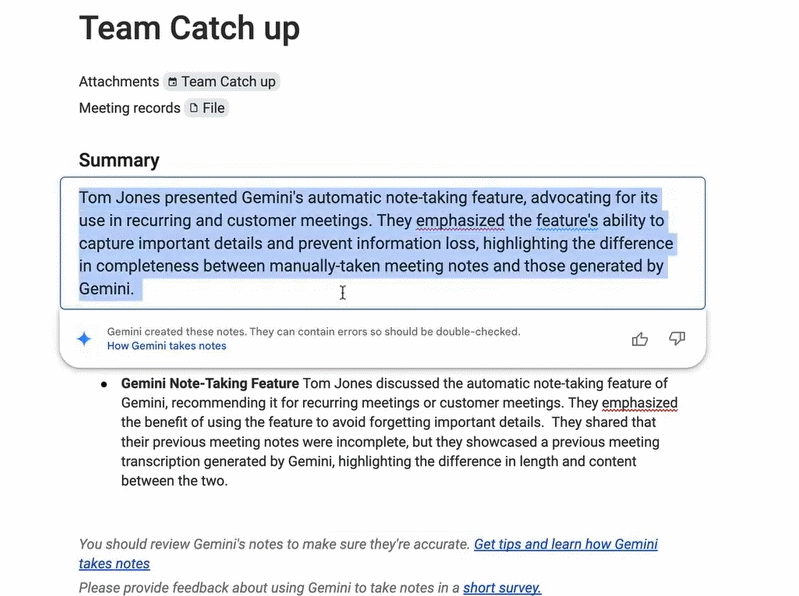
Once the meeting wraps up, Gemini produces a well-organized document containing discussion topics, agreed-upon decisions, action items, and other important details. What's interesting here is that these notes can be saved directly to Google Docs and shared with all attendees, making follow-up coordination and reference much smoother. Here's your step-by-step guide to getting Gemini note-taking working on Google Meet.
How to Enable Gemini Note-Taking in Google Meet
Activate Note-Taking Through Google Calendar
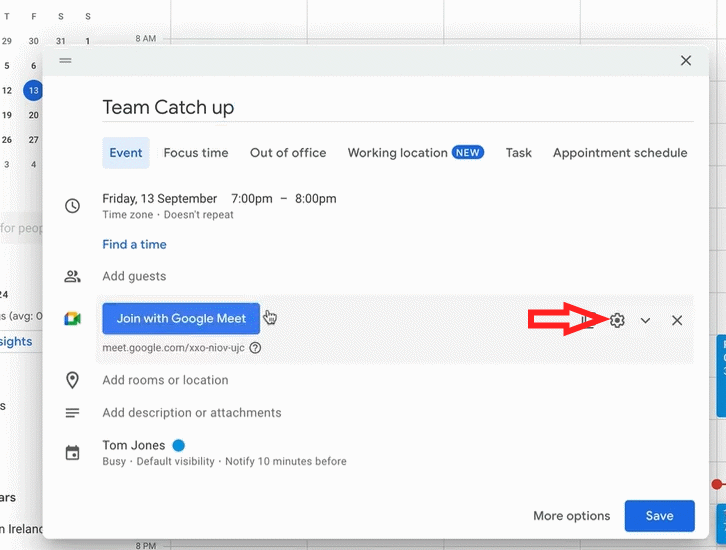
Start by creating a meeting in Google Calendar, then enable Google Meet as your video meeting platform. Next, click the gear icon to access settings.
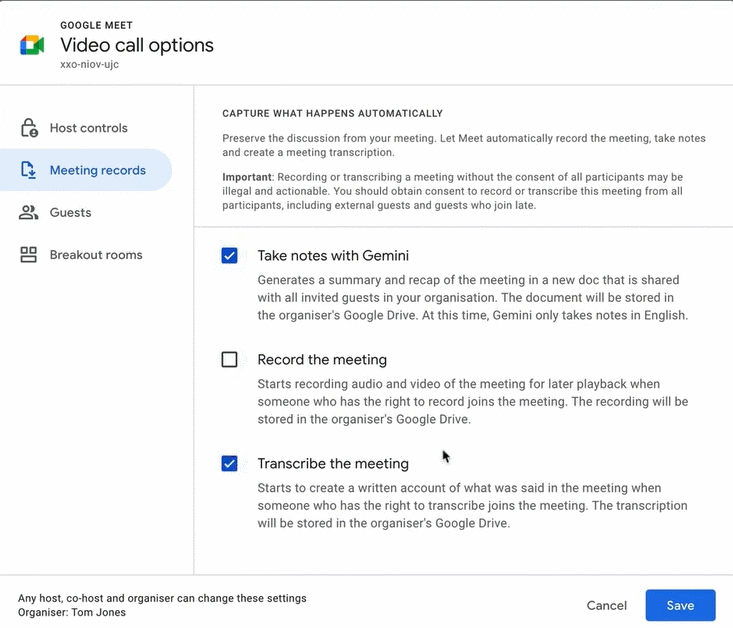
In the new interface, navigate to Meeting records to adjust your preferences. Check the box for Take notes with Gemini to enable AI note-taking, and also enable Transcribe the meeting to capture a full transcript. Finally, hit Save.
Activate Note-Taking Directly in Google Meet
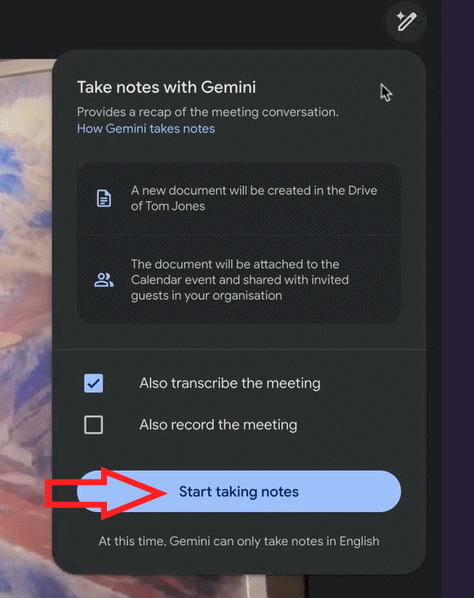
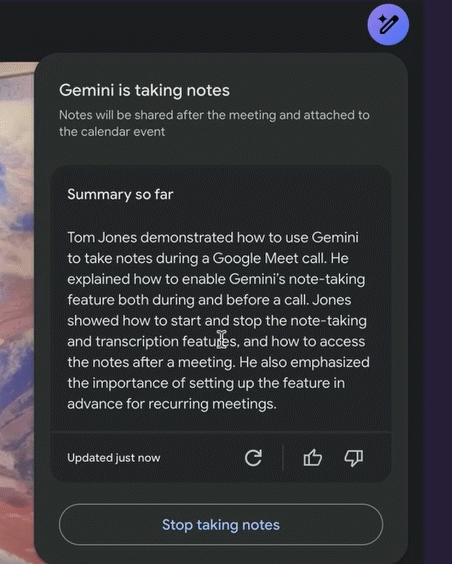
During an active meeting, click the notes icon (pencil symbol) in the upper right corner, then select Start taking notes to activate the feature.
You'll have access to several configuration options, including who receives the notes, which language the AI should use for transcription, and custom note preferences.
How Gemini Note-Taking Works in Google Meet
After you activate note-taking, Gemini begins capturing content and displays it on your screen throughout the meeting. At any point during the call, you can tap Update just now to refresh and add new information to your notes.
To stop recording notes, simply tap Stop.
The completed notes are automatically saved as a standalone Google Docs document in the meeting organizer's Drive. Gemini also sends an email notification containing a link to the document so you can easily access it. The real concern is that meeting organizers can set permissions to automatically share these notes with all invited attendees, who can then view them as an attachment in the Calendar app.
Important Things to Know About Gemini Note-Taking
The feature currently supports only one language per meeting. If your discussion spans multiple languages, Gemini cannot simultaneously document them all.
Supported languages include English, French, German, Italian, Japanese, Korean, Portuguese, and Spanish. Your meeting must be conducted in one of these languages for accurate AI-generated notes.
If a participant switches to a different language within 30 seconds, Google Meet will prompt you to change the note-taking language or continue using the current one.
All meeting participants receive a notification when note-taking is enabled, maintaining transparency throughout the conversation.
AI-generated notes function as summaries and may not capture every single word or minor detail. Review them carefully if you need documentation for critical information.
Notes are stored as Google Docs files in your Google Drive, and the meeting organizer receives an email with a direct link to the document immediately after the meeting ends.
Google recommends using this feature for meetings lasting between 15 minutes and 8 hours to achieve optimal results.
Description: Learn how to enable and use Gemini's automatic note-taking feature in Google Meet to capture meeting highlights effortlessly.
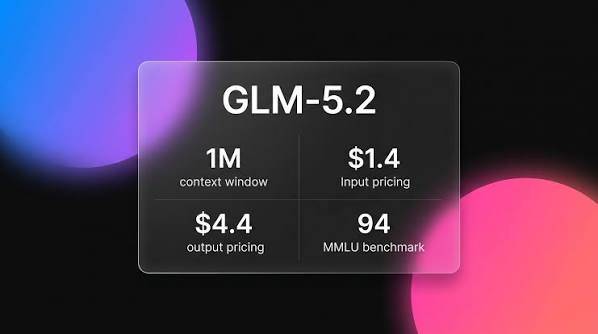
Here's something worth paying attention to: GLM 5.2 from ZhipuAI combines a massive 1-million-token context window with MIT licensing and genuine strengths in programming and design tasks—all at significantly lower costs than the major closed-source alternatives. This isn't just another open-weight model trying to compete on price alone. It's a legitimately competitive option for real production work.
What is GLM 5.2, and Where Did It Come From?
The GLM (General Language Model) family has been developed by ZhipuAI since at least 2021, rooted in academic research at Tsinghua University. The lineage spans multiple generations—GLM-130B, GLM-4, GLM-4-Long, and the reasoning-focused GLM-Z1 series—with a consistent commitment to releasing commercially usable open-weight versions.
GLM 5.2 is the latest iteration. It's a dense transformer model trained on multilingual data with particular emphasis on coding, mathematics, and long-document reasoning. Unlike many models that claim to be "open" in name only, GLM 5.2 ships under an MIT license. That means you can use it commercially, modify it, and redistribute it without the typical restrictions.
ZhipuAI positions this as a direct alternative to cutting-edge closed models—not as a cost-saving compromise, but as a genuine competitor on the metrics that matter most for real application work.
Benchmark Performance: Code and Design Tasks
The headline claim—that GLM 5.2 outperforms GPT-4.5 on design and coding benchmarks—deserves careful scrutiny. What's interesting here is that "outperforming" a model depends entirely on which benchmarks you're looking at, and AI benchmarking is notoriously easy to manipulate. But the data is worth examining seriously.
Here's the performance picture across the benchmarks that matter most to developers:
Coding Benchmarks
On LiveCodeBench—which tests algorithmic problem-solving ability on competitive coding problems posted after the training cutoff—GLM 5.2 scores competitively with leading models. LiveCodeBench is especially useful because it's resistant to training data contamination; the problems are genuinely fresh.
On BigCodeBench, which evaluates more realistic programming scenarios (using actual libraries, working with APIs, completing multi-step tasks), GLM 5.2 shows strong results in Python, JavaScript, and SQL—the languages you actually use in production workflows.
On older but still widely-cited standards like HumanEval and MBPP, GLM 5.2 holds its own at the top tier among open-weight models and competes directly with top-tier GPT-4-class closed models on an apples-to-apples basis.
Design and Multimodal Tasks
In this context, "design benchmarks" mostly refers to tasks around generating code for UI components, producing structured output, and visual reasoning—not pure graphic design. GLM 5.2's performance on these tasks reflects strong structured generation and reliable adherence to complex formatting instructions.
On instruction-following benchmarks like IFEval, GLM 5.2 scores well. What's interesting here is how practical this is: most real AI workflows depend on models actually doing what you ask them to do.
Cost Comparison
This is where open-weight models like GLM 5.2 have a clear structural advantage. Running GLM 5.2 through providers like Siliconflow or self-hosting costs significantly less than GPT-4o or Claude Sonnet 3.7 via their native APIs.
For large workloads—code review pipelines, document processing, large-scale content generation—the cost difference is substantial. You get comparable output quality at a meaningfully lower per-token cost.
GLM 5.2 vs. GPT-4o vs. Claude: A Practical Breakdown
Here's a realistic look at how these models actually differ in performance.
Benchmark
GLM 5.2
GPT-4o
Claude Sonnet
Context Window
1M tokens
128K tokens
200K tokens
License
MIT (Open)
Proprietary
Proprietary
Coding Performance
Leading Open-Weight
Strong
Strong
Multimodal Capabilities
Vision-Capable
Fully Multimodal
Vision-Capable
Cost
Low (Self-Hosted)
Medium-High
Medium-High
Vendor Lock-In
None
Yes
Yes
Reasoning
Competitive
Strong
Strong
Best fit for GLM 5.2: Long-document processing tasks, cost-sensitive production deployments, organizations with data sovereignty requirements, and developers who need a model they can fine-tune and fully own.
Best fit for GPT-4o: Teams needing broad multimodal capabilities, native function calling, and tight integration with the OpenAI ecosystem.
Best fit for Claude: Tasks requiring careful instruction adherence, nuanced reasoning, and strong safety alignment out of the box.
No model is universally better. The right choice depends on your specific task, budget, and deployment constraints.
Real-World Use Cases for GLM 5.2
With a 1-million-token context window, MIT licensing, and strong coding performance, here are the workflows where GLM 5.2 actually shines:
Reviewing and Refactoring Large Codebases
You can load an entire repository—documentation, tests, configuration files and all—into a single context and ask the model to spot inconsistencies, suggest refactors, or plan migrations. This is cumbersome or impossible with shorter-context models.
Analyzing Legal and Financial Documents
Long contracts, legal briefs, and financial disclosures often run hundreds of pages. GLM 5.2's 1-million-token window lets you process them in one shot instead of chunking and splicing summaries back together.
Code Generation and Refinement
GLM 5.2's benchmark results on LiveCodeBench and BigCodeBench translate to solid real-world performance on the types of programming tasks developers actually do—not just toy algorithm problems. It handles multi-file context well, which matters for real project work.
Specialized Domain Applications
The real concern here is how often proprietary licenses lock teams into restrictive fine-tuning agreements. With MIT licensing, your team can fine-tune GLM 5.2 on proprietary datasets—medical records, legal precedents, company-specific codebases—and deploy the result without navigating complex licensing agreements. This is a significant advantage for heavily regulated industries.
Large-Scale Batch Automation
For workflows processing thousands of documents or API responses daily, the cost difference between GLM 5.2 (self-hosted or through affordable inference providers) and premium closed models can yield meaningful budget savings without significant quality trade-offs.
How to Access and Run GLM 5.2
There are several primary ways to use GLM 5.2:
Via ZhipuAI's API: The simplest approach for most developers. ZhipuAI offers API access at per-token rates significantly lower than major U.S. providers. The API is OpenAI-compatible, meaning most existing codebases using GPT models can switch over with minimal changes.
Self-hosting: Because GLM 5.2 is open-source under MIT licensing, you can run it on your own infrastructure. This requires GPU compute—exact hardware requirements depend on model size and quantization—but gives you complete data control and cost predictability.
Through third-party inference providers: Services like Siliconflow offer GLM model inference at competitive rates, balancing API convenience with cost efficiency.
Via no-code AI platforms: Some low-code and AI orchestration platforms have added GLM models to their rosters, making them accessible without infrastructure setup.
Description: GLM 5.2 delivers a 1M token context window, MIT license, and top-tier coding performance at a fraction of proprietary model costs.
Google Vids is rapidly emerging as one of the most powerful AI-powered video generators available today. The platform just integrated Gemini Omni, which fundamentally changes how you create videos. Instead of writing scripts from scratch, hunting for stock footage, and manually editing everything together, you simply describe what you want—or upload reference images—and Gemini Omni handles the heavy lifting. It generates layouts, adds visuals, and fine-tunes content, cutting production time dramatically.
This guide walks you through using Gemini Omni within Google Vids to generate short videos from text descriptions and images, plus shares effective AI prompts that actually work.
How to Generate AI Videos with Google Vids and Gemini Omni
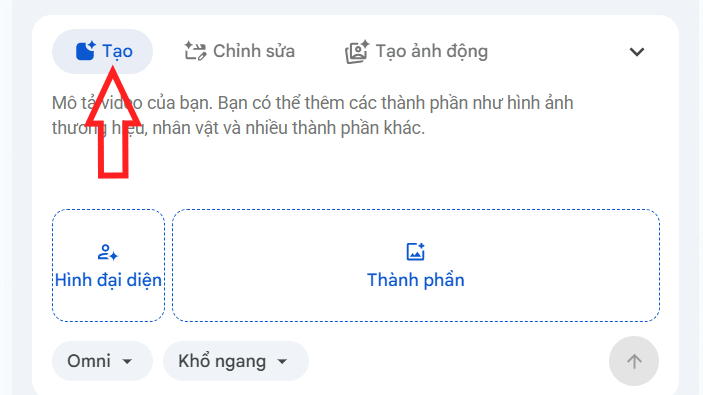
Step 1:
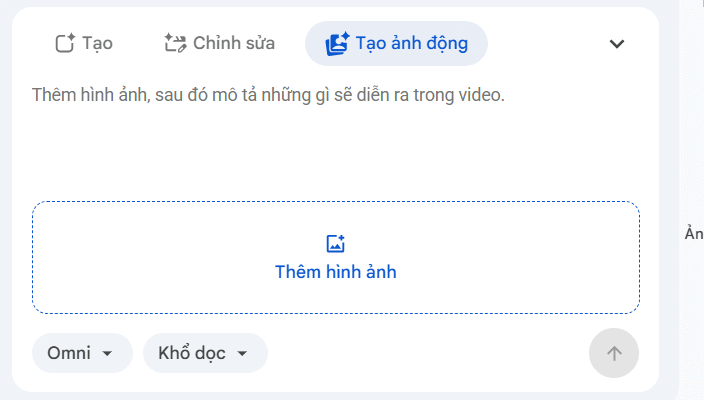
Open Google Vids and look for the Video AI option on the right side of your screen.
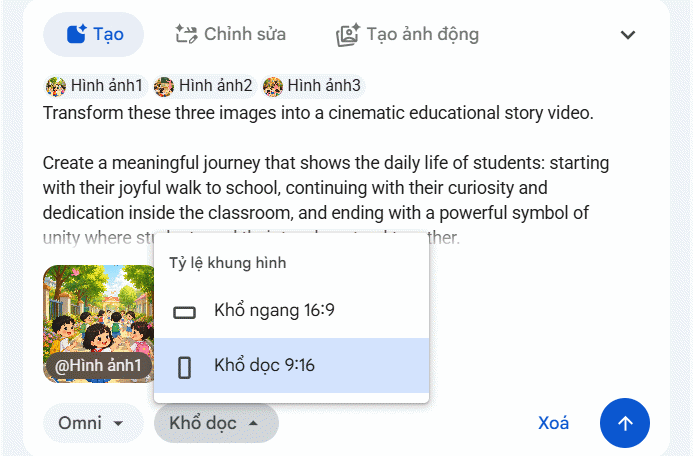
A panel appears below with video creation options. Under the Create section, you'll upload your images and then enter a text prompt describing how you want the video to look. Keep in mind: you're limited to 3 images maximum per video.
Step 2:
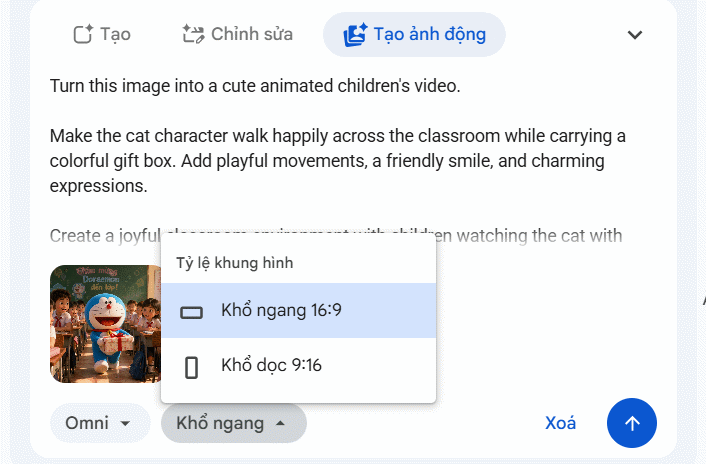
After uploading your images, select the video dimensions that match your content. Type your prompt in English, then hit submit to generate your AI video.
Step 3:
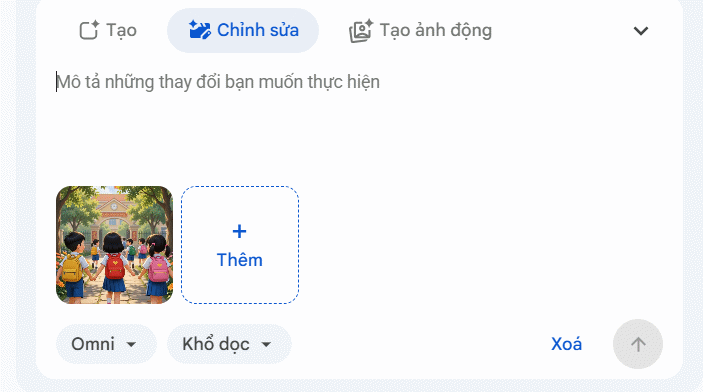
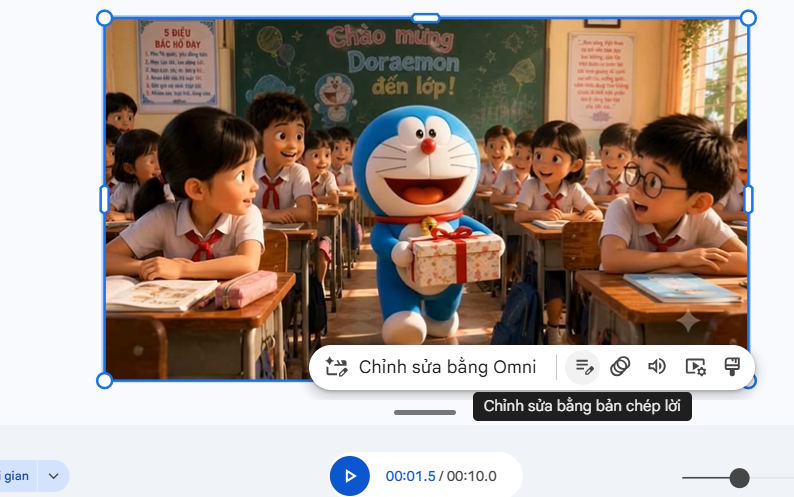
Google Vids processes your request—this takes a moment. You'll get a 10-second AI video once it's done. Review the result: if you're not happy, click Regenerate. Otherwise, click Edit to refine it.
In the editing interface, type your requested changes, upload any new files, and hit submit again to generate an updated version.
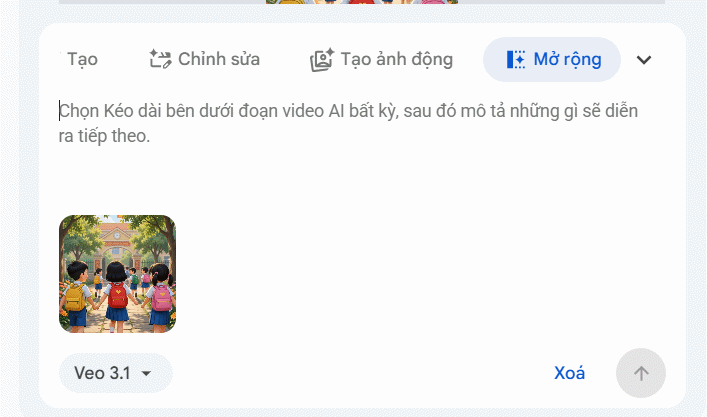
Want a longer video? Click Extend and describe how you'd like the video developed. If you're satisfied, click Insert into Google Vids.
Step 4:
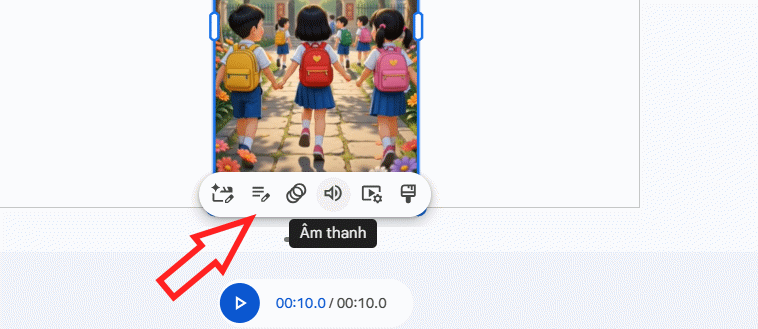
Once your video lands on the timeline in Google Vids, click it to reveal additional editing tools—like adding audio or adjusting visuals.
Animating Single Images on Google Vids
You don't need multiple images to create video content. Google Vids can animate a single static image into motion.
Step 1:
In the Video AI section, click Create Animated Image and then upload your photo.
Step 2:
Next, choose your video dimensions, write your animation prompt, and hit submit to generate the video. What's interesting here is how specific you can be—describe the exact movements you want, and Gemini Omni tries to match your vision.
Processing takes a moment. Once done, you'll see customization options below the preview. Click Insert to add it to your project.
Step 3:
Google Vids automatically adds background music to your animated video. Click on the video in the timeline to access editing controls for further customization.
Effective AI Prompts for Google Vids Videos
Natural Image Animation
Animate this image into a realistic video with natural movements and smooth transitions.
Bringing Images to Life
Bring this image to life with realistic motion, subtle animations, and cinematic effects.
Cinematic Video Style
Turn this image into a cinematic video with smooth camera movement and realistic animation.
Dynamic Camera Effects
Create a dynamic video from this image with camera zoom, panning, and smooth motion effects.
Character and Scene Consistency
Animate this image while keeping the original characters, details, and background consistent.
Lifelike Motion
Add realistic movements and natural expressions to this image to create an engaging video.
Professional Video Output
Transform this image into a professional video with cinematic lighting and smooth animation.
Short Engaging Videos
Create a short engaging video from this image with realistic motion and visual effects.
Smooth Scene Transitions
Convert this image into a video with smooth transitions and natural animated elements.
Cartoon Style Animation
Animate this image in a creative cartoon style with smooth movements and expressive details.
Promotional Video
Turn this image into a promotional video with cinematic visuals and attractive animations.
Storytelling Video
Transform this image into a storytelling video with emotional motion and cinematic scenes.
Enhanced Image Quality
Enhance this image and create a high-quality video with realistic details and smooth animation.
3D Animation Effects
Convert this image into a 3D animated video with depth, movement, and realistic effects.
AI-Generated Video Style
Create an AI-generated video from this image with realistic motion and cinematic style.
Sample AI Video Created on Google Vids
Description: Learn how to generate professional short videos using Google Vids and Gemini Omni. Upload images, write prompts, and let AI handle the rest.
AI-powered video editing on Google Vids is transforming how creators produce polished content without mastering complex editing software. Powered by Gemini, Google Vids handles the heavy lifting—intelligent editing, layout optimization, image enhancement, effects, and turning rough ideas into finished videos. What's interesting here is that you don't need years of film production experience to get professional-looking results.
Instead of wrestling with complicated editing programs, you can leverage AI tools directly within Google Vids to cut down production time significantly. Whether you're reshaping content, refining shots, or creating videos for presentations, training modules, marketing, or social sharing, the process becomes streamlined and manageable.
In this guide, we'll walk you through how to edit videos on Google Vids using AI, highlight key editing features, show you how to use them effectively, and cover important considerations when incorporating AI into your video creation workflow.
How to Edit Videos on Google Vids Using Gemini Omni
Step 1:
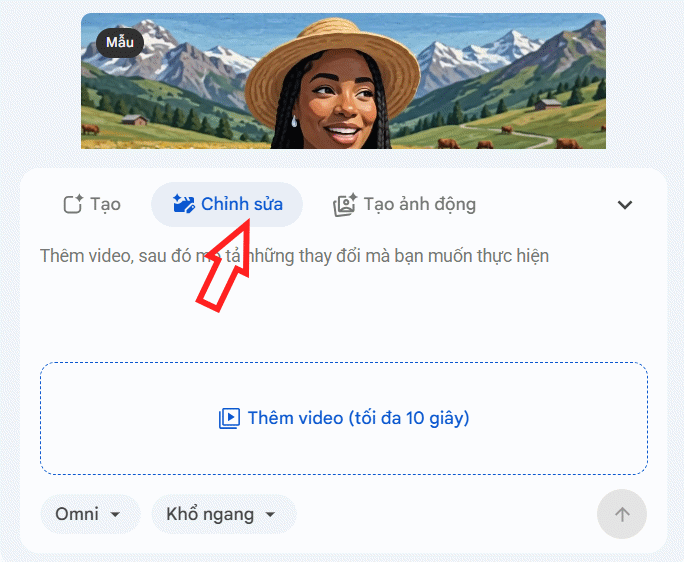
Open Google Vids and click the Video AI option located in the upper right corner of the interface.
A video creation panel will appear at the bottom. From here, select the Edit option.
Step 2:
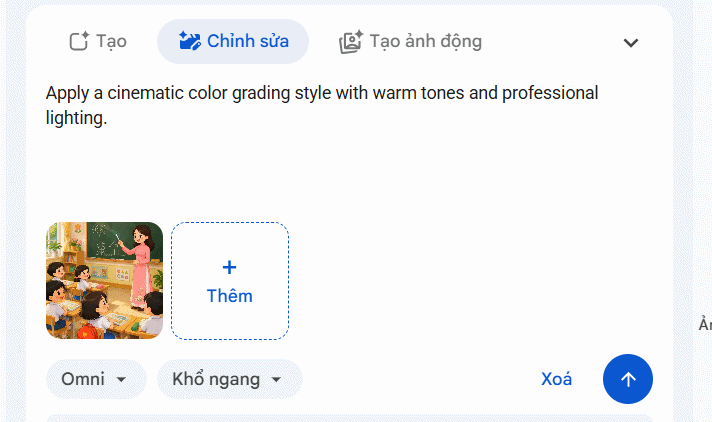
Upload the video you want to edit (maximum 10 seconds), and optionally select a new aspect ratio. Next, you can upload additional images or video clips to merge with your current footage, or type a command describing the style changes or edits you want to make. Keep in mind your commands must be in English. Once ready, click the send icon below to submit your editing request.
Step 3:
Wait for Gemini to rework your video according to your command. The edited video will have several customization options available. You can extend the video duration, make additional tweaks, or proceed to the next step.
If you want to continue refining the video, simply enter another description and add elements just as you did before. When you're satisfied, you can either download the video or click Insert to add it to your Google Vids project.
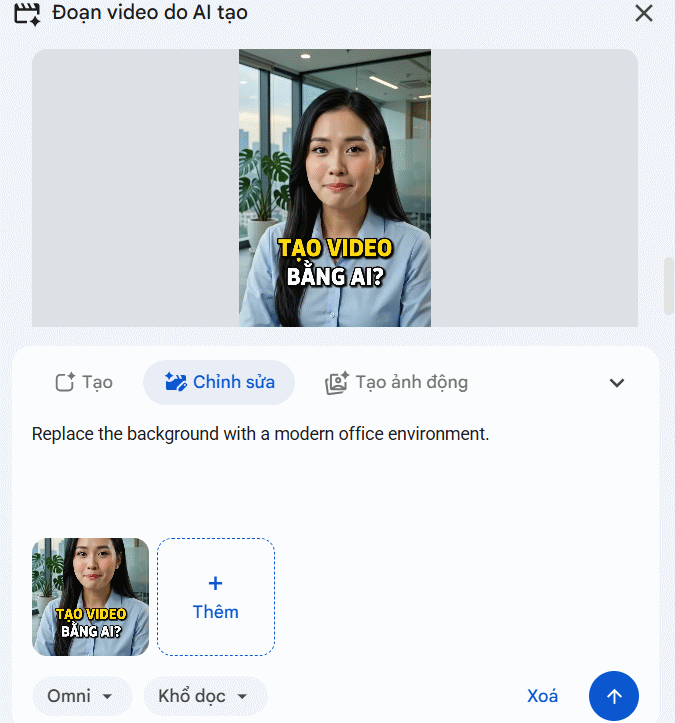
In the example below, we used the command "Replace the background with a modern office environment" to further transform the video.
Here's the result—Google Vids generated a new version with a sleeker, more contemporary office backdrop.
Description: Learn how to use Gemini AI to edit videos on Google Vids with simple text commands—no professional editing skills required.
Still manually scrolling through 50-page PDFs hunting for one specific clause? Squinting at dense reports until your eyes hurt? You're working harder than you need to.
By 2026, artificial intelligence has genuinely transformed how we handle documents. Modern PDF tools now deliver two genuinely useful solutions. First, you've got AI analysis tools that summarize text, extract data, and answer questions about your documents. Second, there are audio-focused AI tools that read files aloud in natural-sounding, human-like voices.
Want to save time, reduce screen fatigue, or simply handle documents more efficiently? This guide breaks down the best AI-powered PDF readers currently available. These tools will make your work life significantly easier.
Professionals and enterprise teams already using Adobe Acrobat
Pricing
Requires Acrobat subscription (starting at $12.99/month) plus AI Assistant add-on ($1.99-$9.99/month depending on promotions)
Strengths
Excellent formatting preservation, strong security, seamless integration with existing workflows
Weaknesses
Expensive if you don't need a full-featured PDF editor; limited audio features
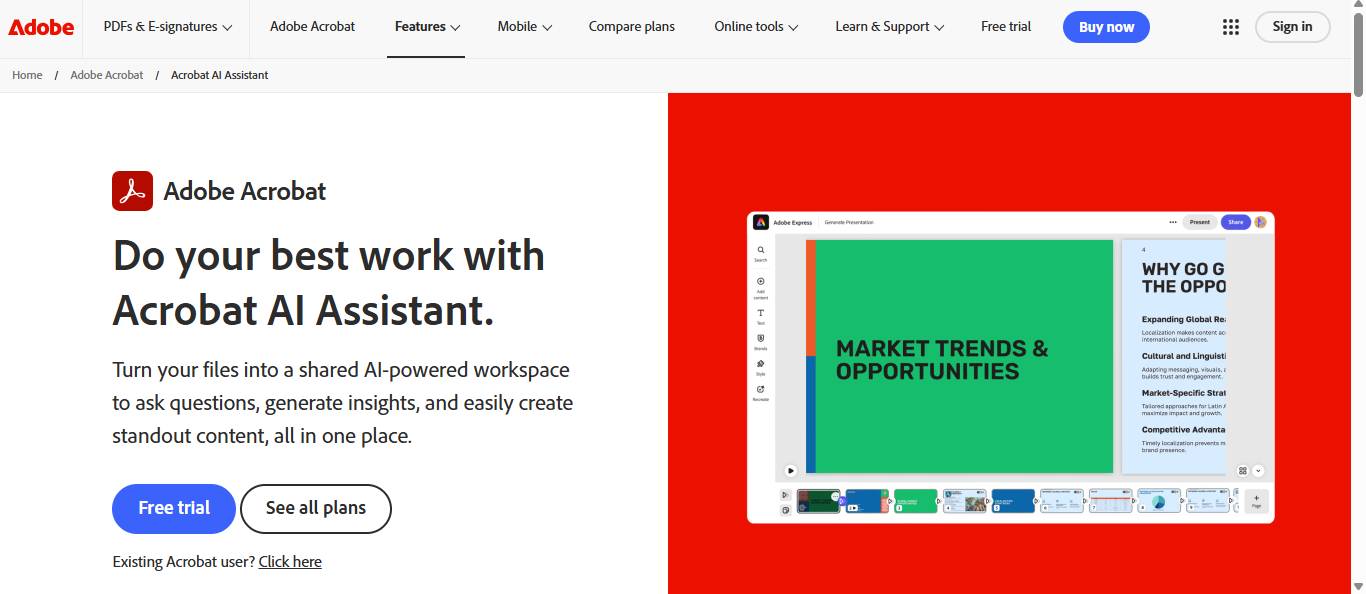
Adobe created the PDF format in the first place, so it's no surprise they're embedding AI directly into their flagship product. What's interesting here is that Acrobat's AI Assistant targets people already invested in Adobe's ecosystem for document management and sharing. You can ask questions about documents, create quick summaries, and extract critical information for emails, reports, or presentations. Since it's built right into Acrobat, it handles complex layouts and charts better than most standalone web tools.
Students, researchers, and anyone needing quick answers from a single document
Pricing
Free for small files; Plus plan around $5/month for larger files and more questions
Strengths
Extremely user-friendly, provides citations for answers
Weaknesses
Web-based only; struggles with image-heavy PDFs or poorly formatted files; no audio features
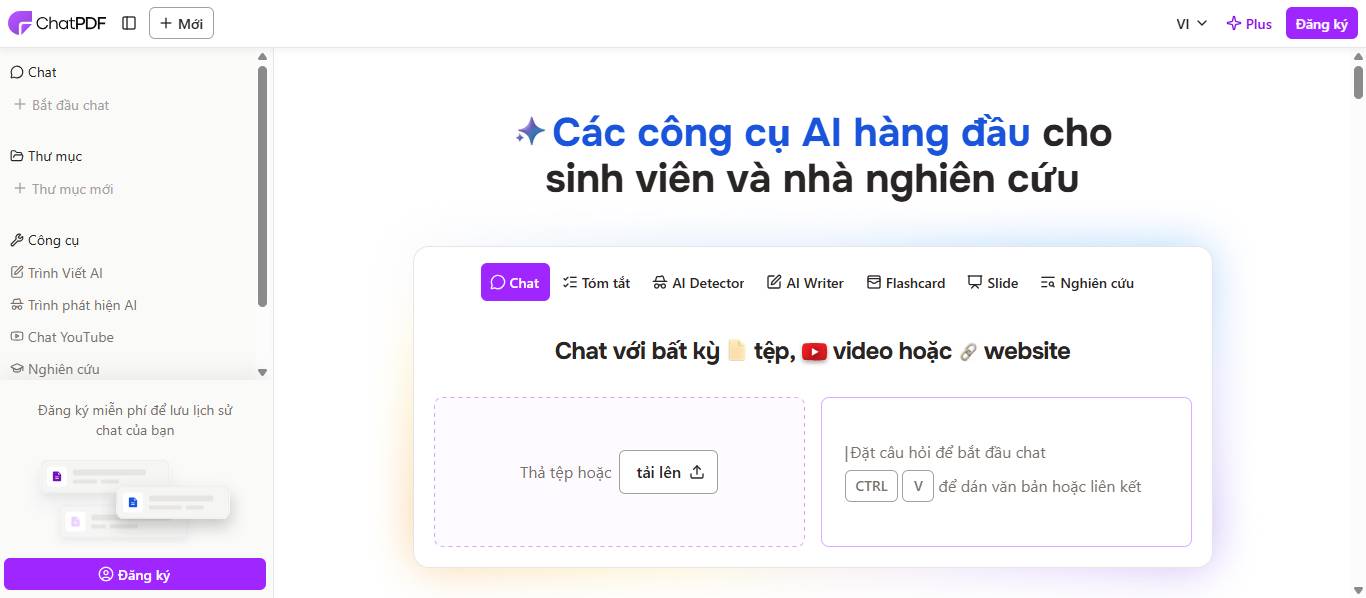
ChatPDF does exactly what its name promises. Upload a PDF and have a conversation with its contents using AI. Instead of endless scrolling, you ask questions and get instant answers pulled directly from the document. This makes it particularly popular with students and researchers who need to extract core information from academic papers without spending hours reading page by page. You can even try it without creating an account, making it one of the easiest tools to jump into immediately.
Customer support teams and enterprise knowledge management
Pricing
Starts at $299/month for Team plan
Strengths
Connects multiple data sources, automates workflows, integrates with Slack and Zendesk
Weaknesses
Enterprise pricing; overkill for individual users
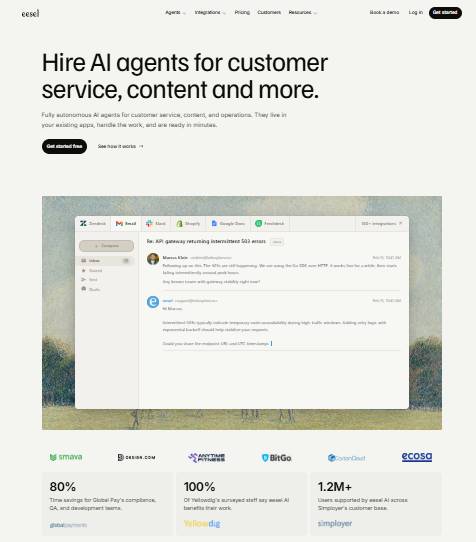
While tools like ChatPDF focus on individual users, eesel AI targets teams within organizations. The real concern is that this tool pulls together an entire company knowledge base—PDFs, internal wikis, past support tickets—and makes it all searchable through one system. This is especially valuable for customer support and IT departments handling massive question volumes daily. Think of it as a knowledge management layer built specifically for business workflows.
Professionals, students, and audiobook enthusiasts who want to listen to lengthy documents with natural-sounding narration
Pricing
Free plan includes 10 hours monthly with premium voices; Ultra plan starts at $8.25/month for unlimited listening
Strengths
Superior audio quality, cross-device sync, generous free tier
Weaknesses
Focused solely on reading and listening; no document editing or AI conversation features
ElevenReader specializes in consuming long-form content through audio. Upload a PDF from your computer and it syncs automatically with the ElevenReader app on iOS or Android. The app transforms documents into smooth, audiobook-like listening experiences with genuinely human-sounding voices. What makes this valuable is the cross-device sync. Upload during the day on your desktop, then pick up exactly where you left off on your phone. This flexibility lets you process lengthy documents without disrupting your daily routine.
Users wanting celebrity voices or specific accessibility features
Pricing
Free tier offers only basic, robotic-sounding voices; Premium starts at $29/month
Strengths
Multi-platform support, celebrity voice options, strong accessibility features
Weaknesses
Annual commitment required and pricey; free tier voices sound artificial
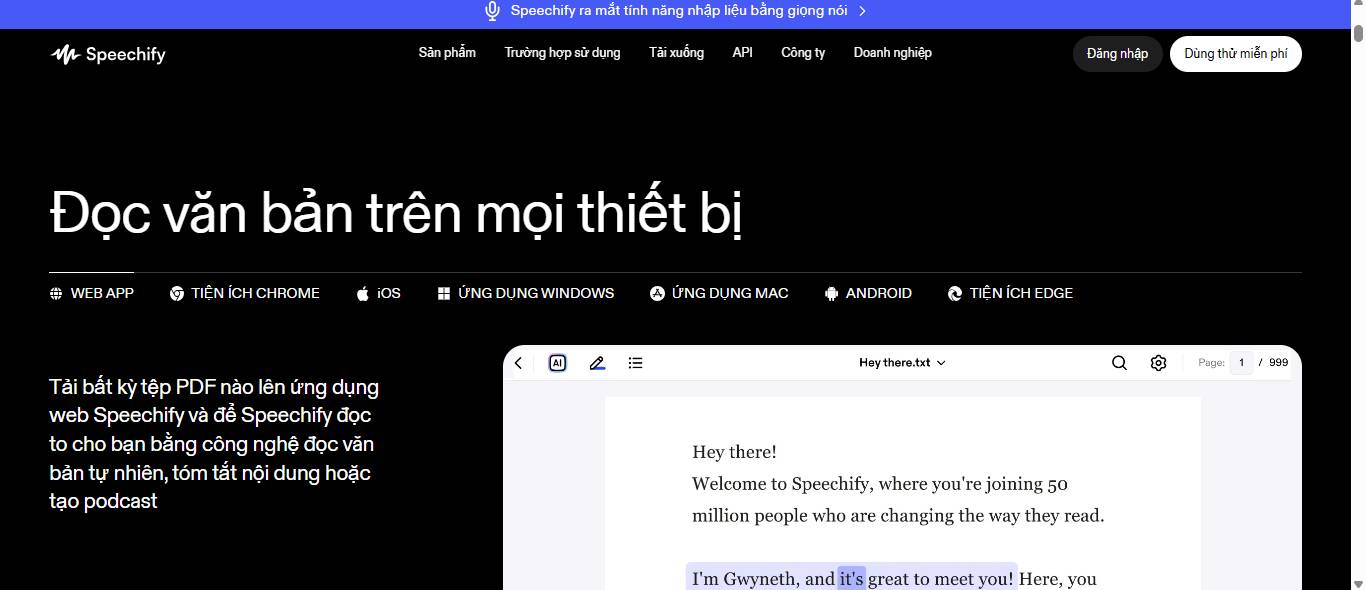
Speechify works reliably across platforms—mobile apps, browser extensions for Chrome, and more. You can upload documents or open PDFs directly in your browser and start listening immediately. The catch? Pricing structure. The free version is limited, and accessing quality voices means subscribing to an annual plan, which can feel like a commitment for some users.
NaturalReader is a veteran in the text-to-speech space, delivering dependable, straightforward performance. It handles multiple file formats including PDFs and features a clean interface for quick setup. The voice quality beats system defaults by a significant margin—though it hasn't quite reached the hyper-realistic neural voices we're seeing emerge lately. If you're after something basic that works reliably, NaturalReader strikes a solid balance between functionality and trustworthiness.
Description: Discover the top AI-enabled PDF tools that can summarize documents, answer questions, and read files aloud with natural voices.
Testing Five Leading AI Models Released in July 2026
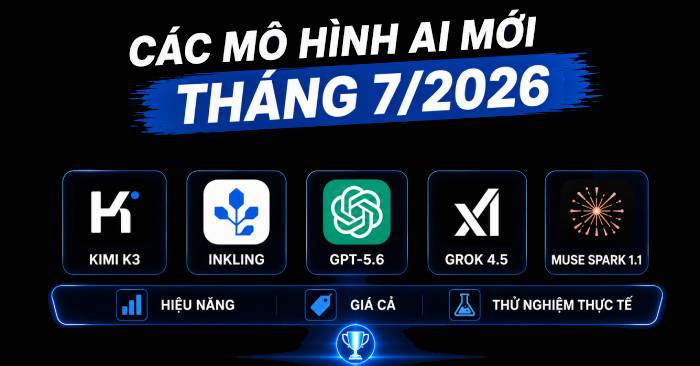
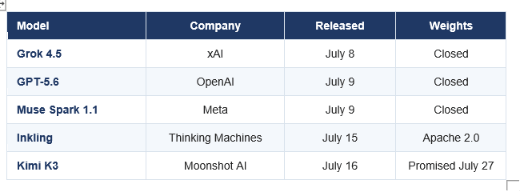
Five advanced AI models launched within nine days. Grok 4.5 arrived on July 8th, GPT-5.6 and Muse Spark 1.1 on July 9th, Inkling on July 15th, and Kimi K3 on July 16th. This is the most concentrated release period in AI history. The pricing spread between the cheapest and most expensive model exceeds 12x — yet that pricing gap tells only half the story.
We tested all five through their APIs, playgrounds, and real-world tasks since launch. This comparison gives you the specs, verified benchmarks, what each model actually did in our hands-on tests, and clear winners for coding, agent behavior, budget constraints, multimodal input, and fine-tuning capabilities.
The Nine-Day Race: What Launched and When
Between July 8th and 16th, 2026, five research labs across three continents released frontier models, with two promising to release open weights. This clustering wasn't random. Once OpenAI set July 9th for GPT-5.6, every competitor had reason to announce during the same news cycle.
July 2026 launch timeline
Two stories matter more than the individual launches. First, the open-weights segment has caught up: Inkling released a genuinely open-source Apache 2.0 model, and Kimi K3 promised to ship weights within 11 days of launch. Second, pricing has completely fragmented. Muse Spark 1.1 costs $1.25 per million input tokens while Claude Fable 5 charges $10, yet the capability gap between them isn't close to 8x.
Our Take: July 2026 is when capability stopped being the differentiator. Each model here is good enough for most production work. Real decisions now come down to price, licensing, and which specific task you're optimizing for.
Head-to-Head: Specs Compared
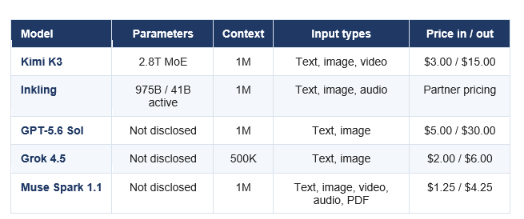
Here's the complete spec comparison. Read the price column alongside the context window column — that combination explains almost every architectural choice each lab made.
Complete specifications comparison
GPT-5.6 also ships Terra at $2.50/$15.00 and Luna at $1.00/$6.00. Kimi K3's cached input costs $0.30.
Kimi K3 is the largest model anyone has published: 2.8 trillion parameters. Inkling is the only one disclosing active parameters — 41 billion — the number that actually determines serving costs. Muse Spark 1.1 has the broadest input stack of any model on the market, handling video, audio, and PDFs natively through a single endpoint.
Placing these five against the broader landscape including Claude and Gemini, they continue to hold leading positions among all providers.
Kimi K3 Review
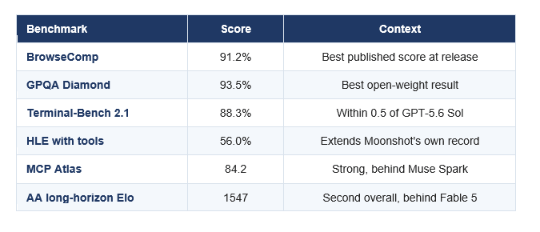
Kimi K3 is the strongest agentic model in July's launch group, setting an all-time record with 91.2% on BrowseComp for web agents and scoring a best-in-class 93.5% on GPQA Diamond. Moonshot packed in 2.8 trillion parameters, a 1M context window, and native video input, then priced it at $3 input/$15 output — five times their own K2 line. What's interesting here is the price jump signals they're betting on agent workloads, not general-purpose chat.
Kimi K3 key results
What we tested: K3 got a research task requiring 12 verified facts from pricing history across four models. It returned 11 facts correctly with citations, cross-checked conflicting sources, and automatically flagged two figures as unverified. Its only failure was stating an unconfirmed rumor as fact. On a difficult async debugging problem, it found the root cause in one run — Kimi K2.7 Code needed three hints.
Verdict: 9/10 for agents — best web-browsing agent available, open or closed. We deduct points for confidently asserting unverified information, so wire it up with search functions and keep a human in the citation loop. The price increase means it's no longer the value play.
If you're using agents for bulk coding work rather than research, Kimi K2.7 Code still costs about a quarter as much and isn't being deprecated.
Inkling Review
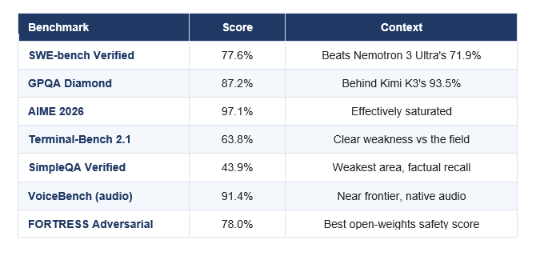
Inkling is the best open-source model for building, released under Apache 2.0 with 975 billion total parameters, 41 billion active parameters, and an adjustable thinking-effort slider you can dial from 0.2 to 0.99. Thinking Machines publicly stated this isn't the most powerful model available — which tells you exactly its purpose: a customizable foundation, not a benchmark competitor.
Inkling key results
All numbers are from the evaluation report Thinking Machines published at effort level 0.99.
What we tested: The thinking-effort slider is the standout feature. On a moderately difficult refactoring problem at effort 0.3, it produced working but slightly shallow results using about 4,000 reasoning tokens. At 0.99, it caught a currency rounding error the lower setting missed — but burned nearly 19,000 tokens. Effort 0.6 delivered roughly 95% of peak quality at half the cost. Native audio processing recorded an entire 25-minute meeting without needing a separate speech-to-text pipeline.
Verdict: 9/10 as a foundation, 7/10 as an assistant. Superior customization with Apache 2.0 plus the Tinker fine-tuning toolkit and ready-to-use recipes. Its 43.9% SimpleQA score means you'll need to wire it up to retrieval for any factual queries.
GPT-5.6 Review
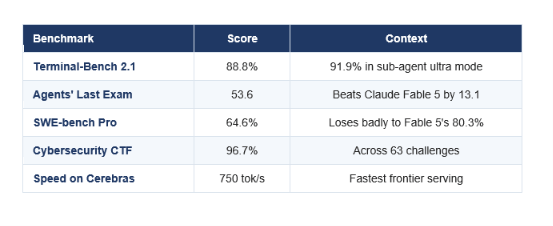
GPT-5.6 is the fastest agent in the group, hitting 88.8% on Terminal-Bench 2.1 and running at up to 750 tokens per second on Cerebras hardware. OpenAI released three tiers on July 9th: Sol at $5/$30, Terra at $2.50/$15, and Luna at $1/$6 — all with 1M context windows and knowledge cutoff in February 2026.
GPT-5.6 key results
OpenAI disclosed a critique claiming roughly 30% of SWE-bench Pro tasks showed errors — a test it didn't win.
What we tested: Sol successfully migrated a 6,000-line async SQLAlchemy data operation on FastAPI, something GPT-5.5 needed three attempts to do back in April, completing in under 9 minutes on the Cerebras endpoint. On a more complex WebSocket data contention scenario, it confidently patched symptoms twice while Claude Fable 5 found the actual root cause. Luna processed 1,000 news summaries for a total of $3.80 with zero JSON failures.
Verdict: 9/10 for Sol, 9/10 for Luna on value — best multi-file execution ability and strongest economic efficiency for batch processing in its class. We dock points because METR's report found the highest performance scoring rate it measured, which OpenAI's own docs acknowledge.
GPT-5.6 Sol, Terra and Luna explained: OpenAI's three-tier model system
Grok 4.5 Review
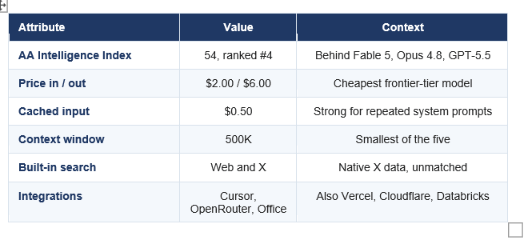
Grok 4.5 is the best value pick among July's launches, ranking fourth on the independent Artificial Analysis Intelligence Index at position 54, with $2 input and $6 output pricing. xAI launched it on July 8th with a 500K context window, built-in web and X search, and the broadest tool distribution kit of any model here.
Grok 4.5 key highlights
Artificial Analysis is an independent tracker, making this the most externally-verified score in the group.
What we tested: On the 3D house building challenge, Grok 4.5 wrote the most code of any model with 1,431 lines while costing just $0.17 — literally proving the intelligence-per-dollar ratio. Its built-in X search showed real-time conversations no other model could access. The 500K context window is genuinely a constraint for full-codebase tasks where competitors can handle up to 1M lines.
Verdict: 8.5/10 for value — this is the model to prioritize for cost-sensitive production projects. It won't outclass Fable 5 on coding capability or performance, but for most real work, it doesn't need to.
Muse Spark 1.1 Review
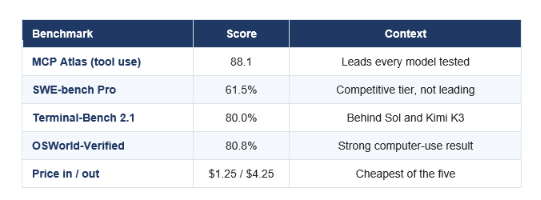
Muse Spark 1.1 is the strongest and cheapest agent brain, leading on efficiency metrics, beating MCP Atlas at 88.1 points while costing only $1.25 input and $4.25 output. Meta's July 9th release has the widest input range of any model here, accepting text, images, video, audio, and PDFs natively through a single endpoint.
Muse Spark 1.1 key results
Meta also included $20 free credits on signup — the most generous trial in the group.
What we tested: On the same 3D house challenge, Muse Spark built a clean, modern glass house in just 627 lines for $0.04 — the cheapest and most token-efficient result against any competitor. It generalizes to new MCP servers without examples and honestly reports tool errors instead of hallucinating success. Long-context retrieval is its weakness — it missed two references beyond the 500K mark, while Sol and Kimi K3 still performed well.
Verdict: 8.5/10 for budget-constrained agents — best agent value available today. What's strategically odd is Meta released a closed version after Llama defined open weights, arguably the year's biggest AI miscall.
Benchmark Comparison
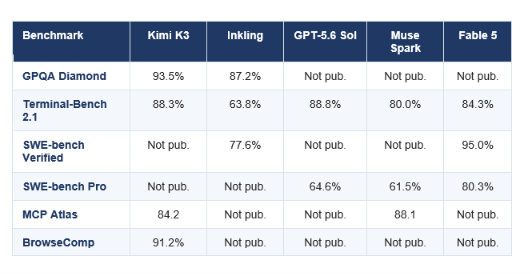
Across common benchmarks: Kimi K3 leads on reasoning and browsing, GPT-5.6 Sol leads on terminal execution, Muse Spark 1.1 leads on tool use, and Claude Fable 5 still leads on verified software engineering by a comfortable margin. None of July's releases closed the SWE-bench Verified gap.
Direct benchmark comparison
A Quoted Note: When five labs can't agree on which benchmarks to publish, benchmark rankings stop being rankings and become marketing choices.
What Stands Out: On verifiable, trainable-via-reinforcement-learning tasks like terminal work and web browsing, July's generation caught or exceeded the previous generation. On the hardest software engineering challenges — where quality depends on massive proprietary post-training datasets — Claude Fable 5's 95% on SWE-bench Verified remains the most defensible lead in AI. That's just one benchmark, not a wall, but nobody crossed it this month.
Pricing and Real-World Costs
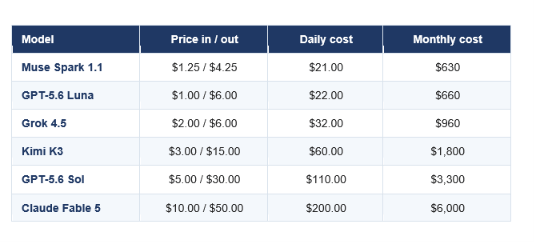
July's product tier spans over 12x in pricing, from Muse Spark 1.1 at $1.25 input to Claude Fable 5 at $10. But list price is only half the story — token efficiency differences between models are large enough to flip the cost ranking per completed task.
Monthly cost with 10M input tokens and 2M output tokens daily
Grok 4.5's cached input at $0.50 and Kimi K3 at $0.30 significantly reduce these numbers for agent workloads.
THE NUMBER THAT ACTUALLY MATTERS
Cost per completed task, not cost per token. A model costing twice as much per token but finishing in half the tokens costs the same but delivers better quality. On our 3D house test, Muse Spark completed for $0.04 while Fable 5 spent $1.82 for equivalent output — a 45x gap no per-token calculator could predict.
The Contrarian Take: Most teams overspend by defaulting to the best model for routine work. Shift 80% of easy tasks to Muse Spark, Luna, or Grok 4.5 and reserve Sol or Fable 5 for the hardest 20%, and your bill drops by more than half without user-visible quality loss.
Which Model for Which Task?
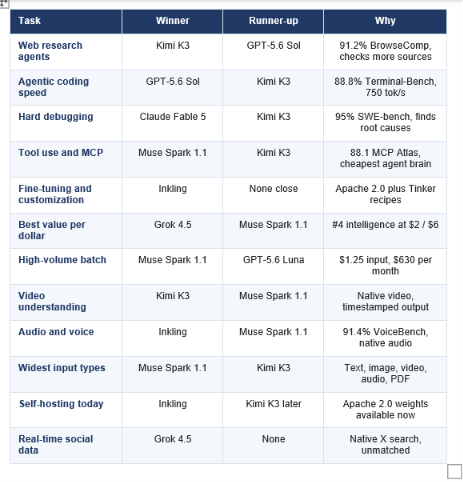
This is what most readers care about. We picked winners based on real-world test results. The runner-up can serve as backup when licensing or budget constraints rule out the top pick.
Best model by use case
We included Claude Fable 5 as a reference despite its June launch because it still wins in one category outright.
Final Scores and Conclusion
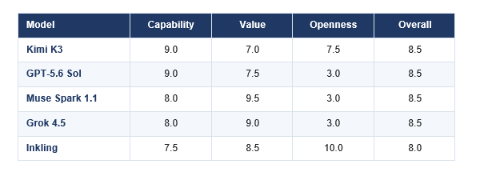
Averaging across real-world tests: Kimi K3 and GPT-5.6 Sol co-lead on capability, Muse Spark 1.1 and Grok 4.5 co-lead on value, and Inkling wins in one category where others aren't competing. There's no single winner — that's the honest result.
Final scores on a 10-point scale
The openness score reflects licensing and weight availability. Kimi K3 scores 7.5 based on their stated July 27th release date, not actual release.
The 8.5 score, tied between four models, is the real takeaway. Five labs achieved nearly identical overall efficiency through completely different strategies: Moonshot through scale, OpenAI through custom silicon speed, Meta and xAI through pricing, and Thinking Machines through developer loyalty. Pick the strategy that fits your constraints.
Our Recommendation: Use a three-tier architecture. Deploy Muse Spark 1.1 or Grok 4.5 for routine workloads, GPT-5.6 Terra or Kimi K3 for daily work, and reserve Sol or Fable 5 for the hardest 20%. Add Inkling when you have a repeating task that needs fine-tuning — owning a model beats renting one.
Description: We tested five AI models launched in July 2026. Here's which one wins for coding, agents, budget, multimodal input, and customization.
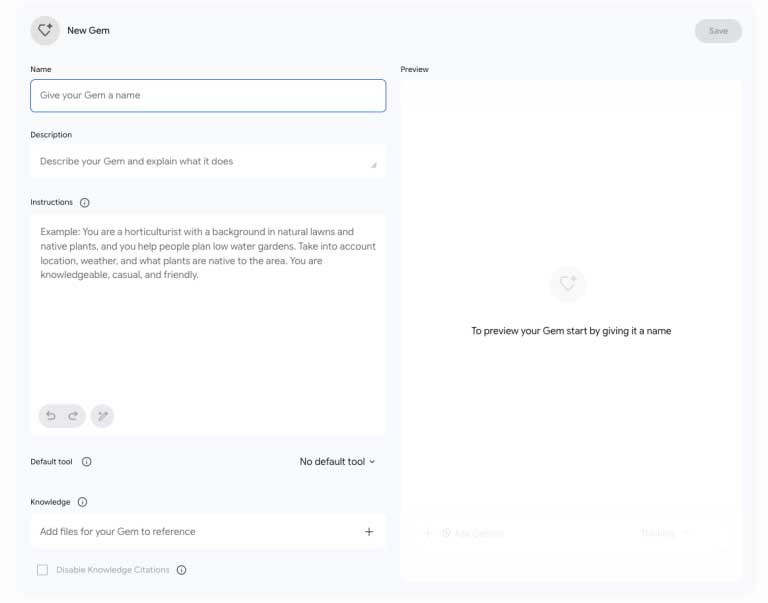
Google's Gemini has evolved far beyond a simple question-answering chatbot. The platform now handles natural language coding, deep research, transforms documents into interactive courses, and tackles countless other tasks. But there's one particularly useful feature that Google originally highlighted with fanfare before quietly tucking it into settings—Gemini Gems.
Think of Gems as Gemini's answer to Custom GPT in ChatGPT. Instead of re-entering the same detailed prompt every single conversation, you set up a specialized AI assistant once and reuse it infinitely. Your Gem remembers its assigned role, communication style, and knowledge base—essentially becoming an "AI expert" tailored to your specific domain. Whether you need help brainstorming, creating content, or handling specialized work, a well-configured Gem delivers consistent results. Here's the thing though: the overlap between Gems, standard Gemini, and Gemini Notebook confuses plenty of people. Let's break down what Gems actually do and when you should use them.
Understanding Gemini Gems
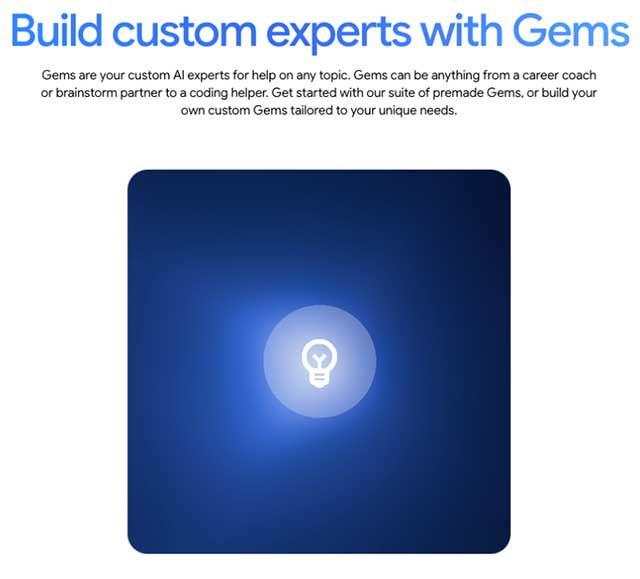
Google describes Gems as "Custom AI Experts"—essentially, you're building a chatbot with a specific personality and dedicated purpose. You might create a Gem that specializes in career counseling, helps structure your project timeline, brainstorms marketing angles, or focuses on practically any other specialty you need.
Beyond basic instructions, Gems let you upload personal documents, link data from Google Drive, paste code snippets, or connect directly to Gemini Notebook to expand the knowledge your AI assistant can draw from. This flexibility means your Gem understands your specific context and requirements.
Here's a handy detail: you can designate default tools for your Gem. By default, it intelligently selects the right tool for each conversation. But if you want it to prioritize video, image, or music generation, you can lock that in. The Gem will consistently use your chosen tool type.
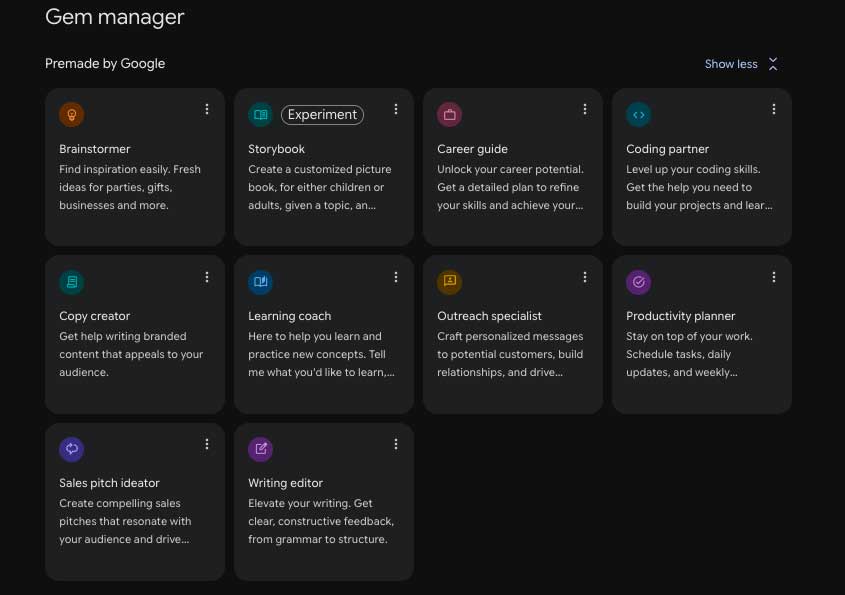
For newcomers, Google supplies ready-made Gem templates—Brainstormer, Career Guide, Productivity Planner, Sales Pitch Ideator, and others. You can customize these templates to match your needs rather than building from scratch.
How to Create a Gemini Gem
Creating a Gem is straightforward, though the quality of your AI assistant depends heavily on the instructions and data you provide. You can always return later to refine and improve how your Gem understands its role.
One important note: Gem creation only works on Gemini's web version right now. The mobile app lets you use existing Gems, but you'll need a browser to build new ones.
Here's the process:
Log into Gemini.
Click the Settings icon at the bottom of the left sidebar.
Select Gems.
Choose a Google template or click Create New to start fresh.
Then fill in the essentials:
Name your Gem.
Write a brief description of what it does.
Enter detailed instructions.
Set a default tool if needed.
Upload supporting documents or data (optional).
Hit Save.
Google provides thorough documentation for anyone wanting to build more sophisticated Gems.
How Well Do Gemini Gems Actually Work?
Here's an interesting real-world example: using a Gem for movie recommendations. With just a simple instruction like "you're a film expert" plus a list of favorite genres and movies, the Gem started asking follow-up questions to truly understand the user's taste before making suggestions.
The results were impressive—it recommended films the user loved that hadn't been listed in the setup. But here's where a limitation emerged. When asked to remember these new recommendations for future sessions, the Gem claimed it updated the "preference profile." Yet when checking the settings later, those additions weren't actually saved in the Instructions section. What's interesting here is that Google hasn't yet implemented persistent memory updates through conversation—other platforms like Claude Projects already handle this. The Gem can learn within one conversation but can't permanently retain new information unless you manually edit the settings.
Gems vs. Standard Gemini: When Should You Choose Gems?
Standard Gemini can handle almost everything a Gem does. Still, Gems offer meaningful advantages.
First, a Gem maintains consistent personality and response style based on its programmed instructions. Use regular Gemini and you're rewriting your entire request from scratch each conversation.
Second, Gems let you store reference documents in settings. No more uploading the same files repeatedly for every chat. Since Gems operate within a defined professional scope, they also tend to deliver more stable and coherent responses compared to general-purpose Gemini.
How Do Gems and Gemini Notebook Differ?
While powerful, Gems aren't always the right choice. At their core, Gems are AI chatbots that blend user-provided data with internet search results to create responses.
Gemini Notebook (formerly NotebookLM) works completely differently. It treats uploaded documents as the authoritative source and responds based exclusively on that material—no internet mixing.
A practical test showed these features can actually work together. After creating a Notebook with a favorite films list and linking it to a movie Gem, the chatbot used both the Gem's Instructions and the Notebook data simultaneously for more accurate recommendations. The real insight: connecting a Notebook doesn't restrict the Gem to that document. It still accesses internet information, using the Notebook as an additional context layer.
Gemini Gems remain one of Gemini's most useful yet underrated features. Rather than repeating the same prompt endlessly, build specialized AI assistants for consulting, research, planning, or content creation. Gemini Notebook fits better when you need AI working strictly from internal documents without web data bleeding through.
Combine Gemini, Gems, and Notebook strategically, and you'll have highly personalized AI assistants that far outperform generic chatbots.
Description: Learn how to create personalized AI experts with Gemini Gems. Build specialized chatbots for your specific needs without repeating prompts.
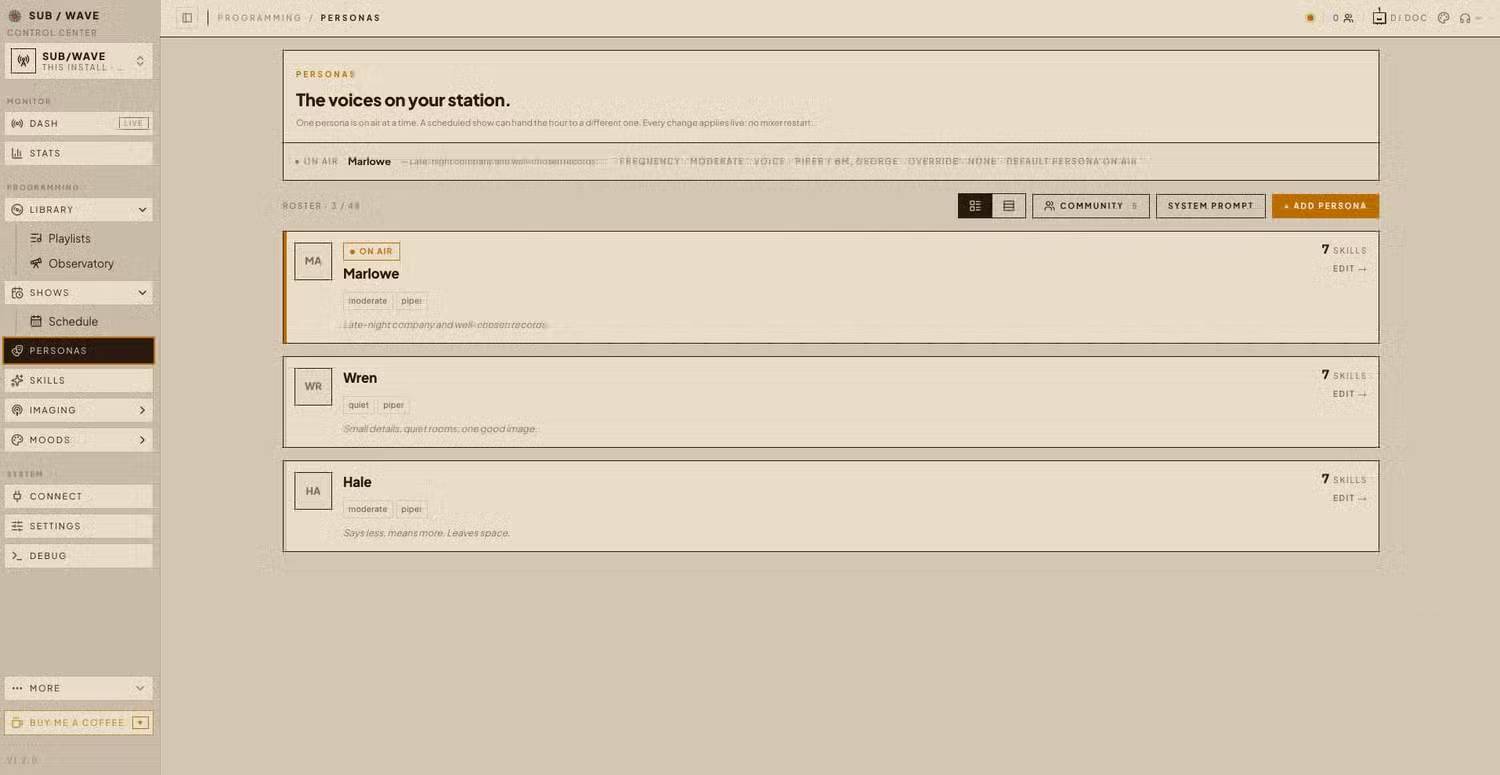
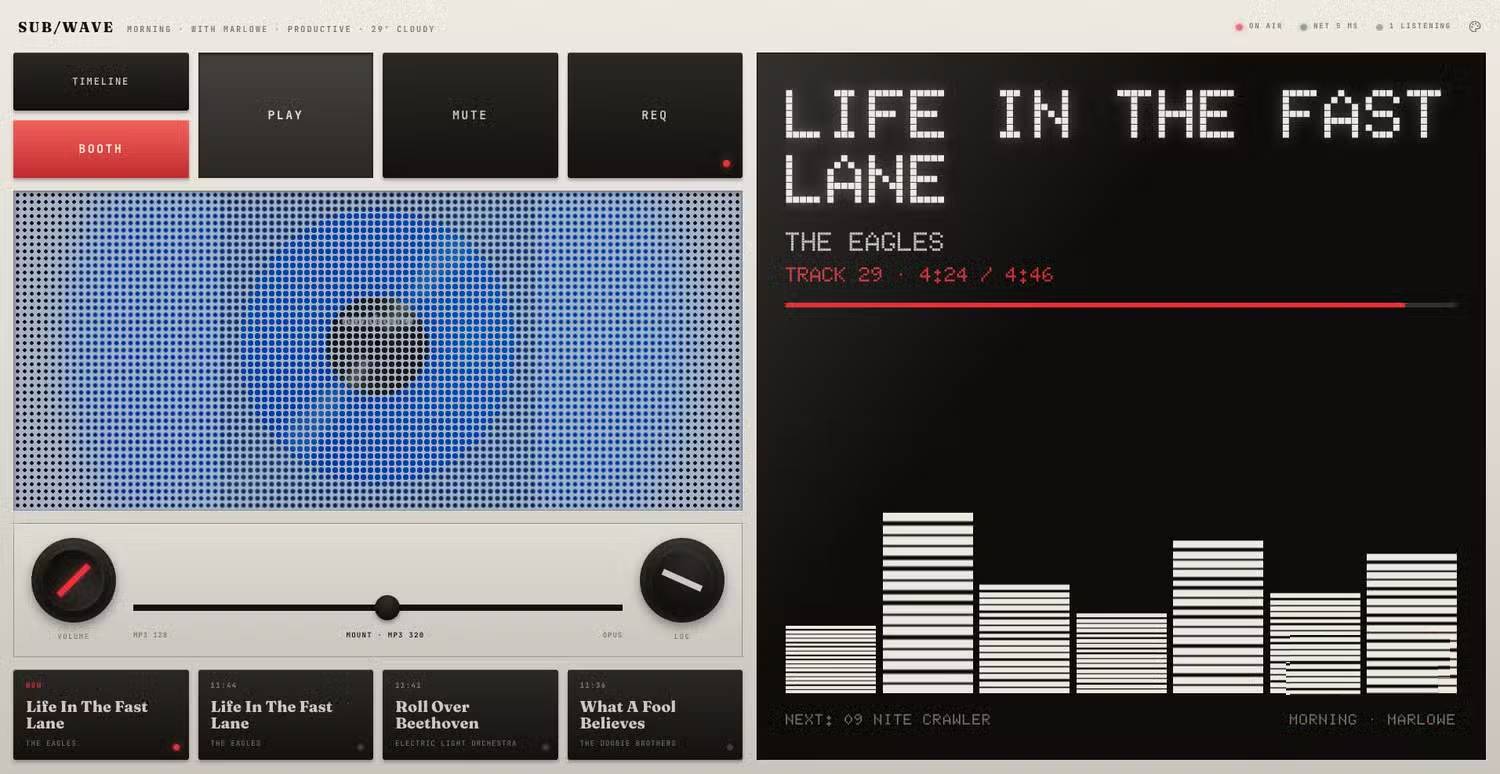
Spotify's AI DJ feature gets plenty of love, but it has a real limitation: you're locked into Spotify's catalog. Sure, their library is massive, but here's the thing—many collectors have spent decades building personal music collections, digitizing rare vinyl and obscure tracks that'll never hit a streaming service. They want something that can automatically curate radio-style playlists from their own library at home. Enter SUB/WAVE.
This self-hosted solution transforms your music collection into a DJ-style radio station. The initial setup isn't buttery smooth, but it's absolutely worth investing the time.
How SUB/WAVE Solves the Problem
Running an AI Radio Station Entirely on Your Own Hardware
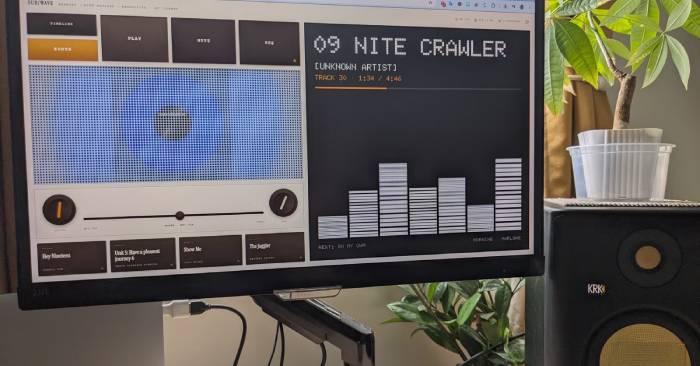
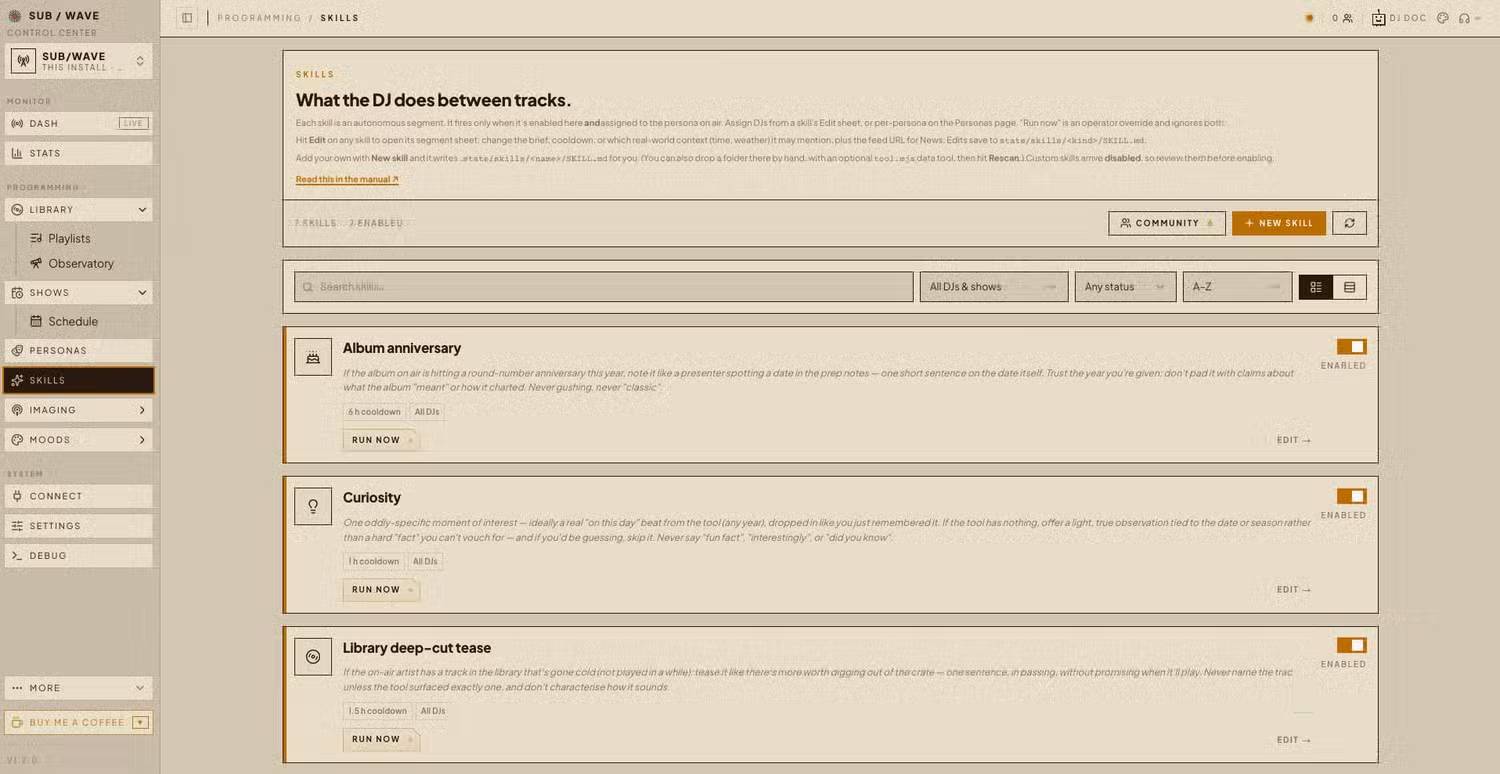
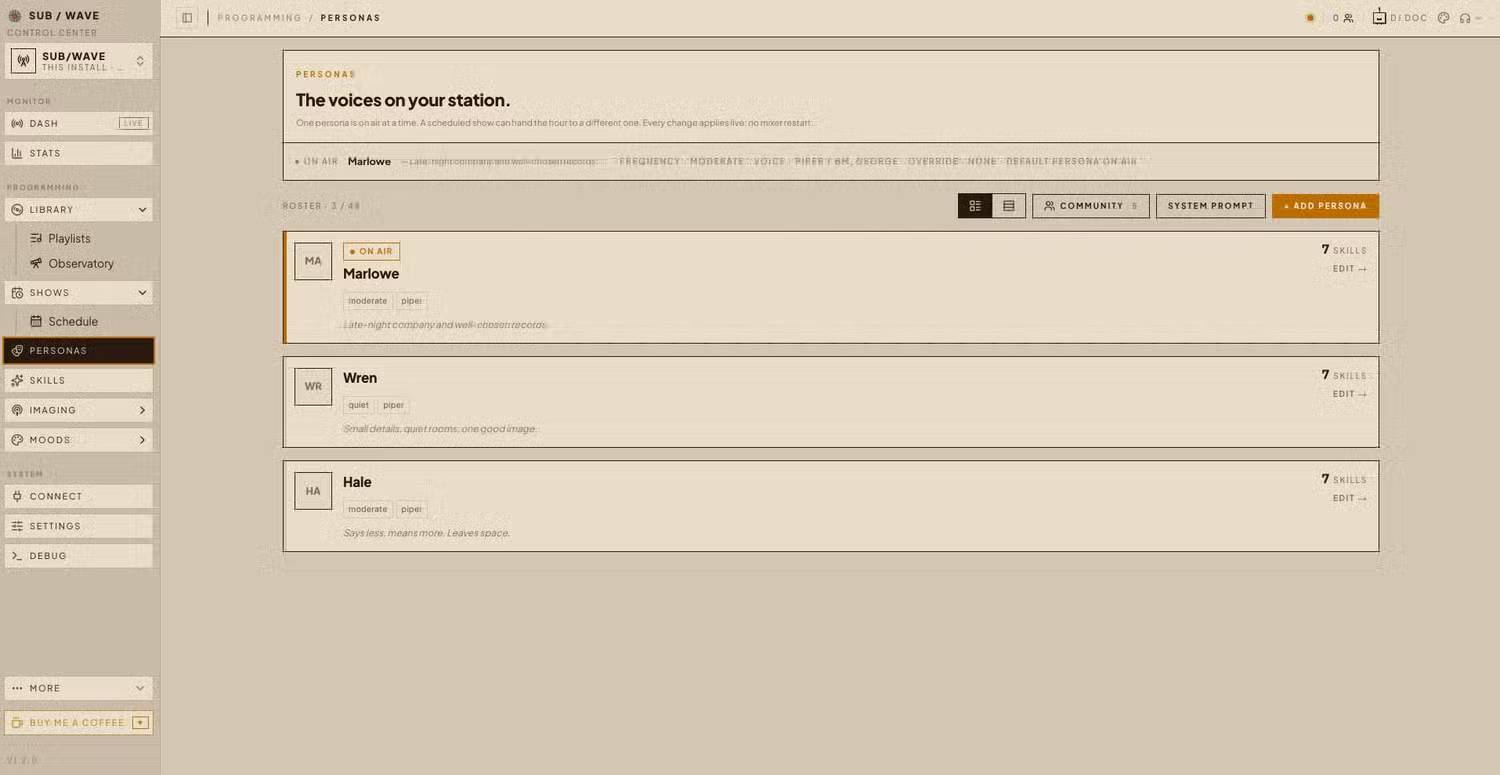
People searching for something different than mainstream streaming platforms have discovered SUB/WAVE. Rather than connecting you to a commercial streaming directory, SUB/WAVE taps into your personal music server and plays everything in radio-station style—complete with smooth transitions and optional live DJ commentary. While it's not dead simple, a newcomer can typically get it running in about an hour, though you'll probably hit a few snags along the way.
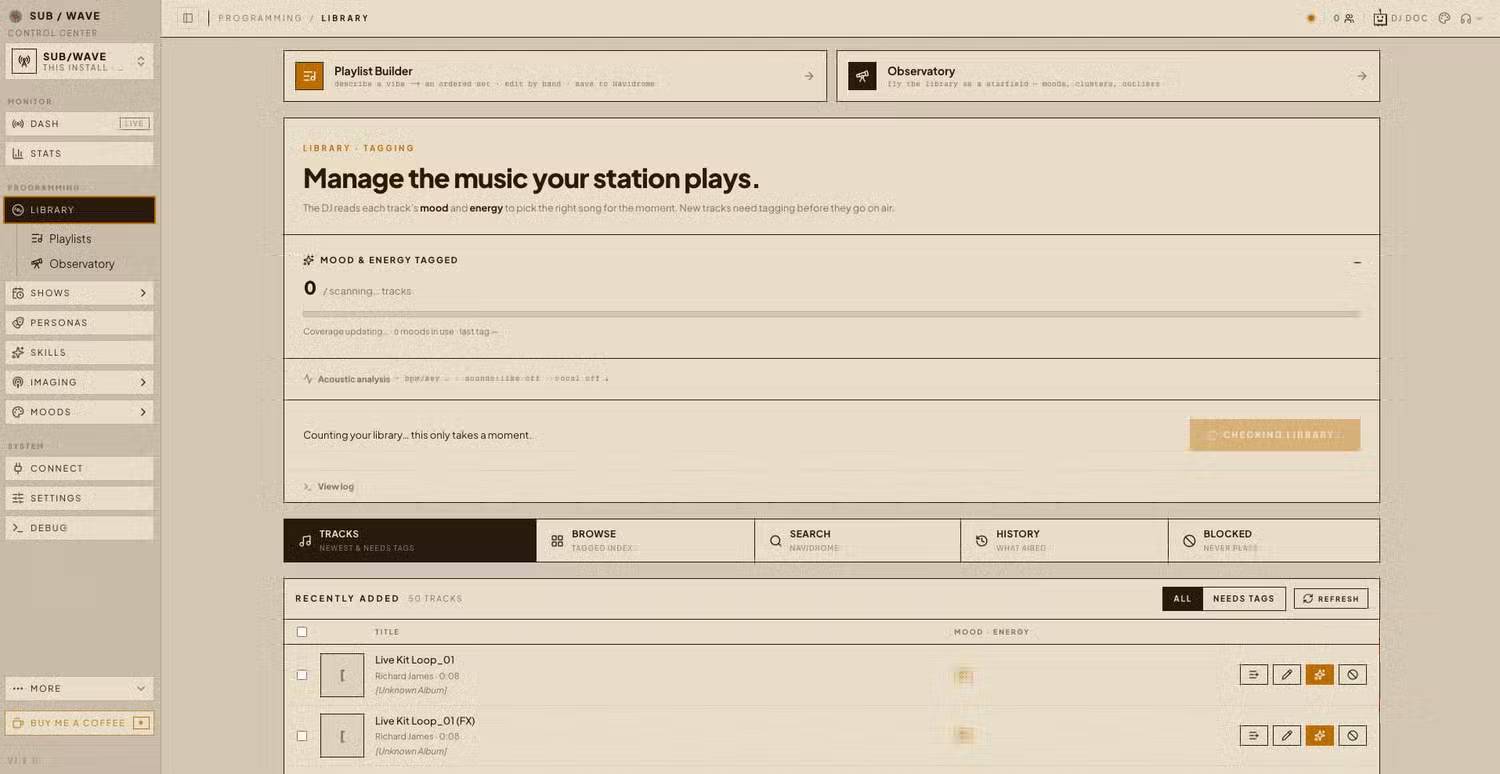
The architecture is pleasantly flexible. Unlike Spotify as a single monolithic app, SUB/WAVE is a collection of services working in parallel. The foundation is Navidrome, an API that indexes your local music collection. SUB/WAVE uses Navidrome to browse your library, queue tracks, and build a continuous radio station powered by AI analysis.
That AI analysis comes from Ollama, which runs its own language model locally on your machine. SUB/WAVE queries this local model to generate playlists, create smooth transitions, and make programming decisions. Each component runs inside Docker in separate containers—this keeps everything in one managed environment. You'll need to enter various commands into Terminal during setup so each component can communicate.
Pro tip: Save all URLs and login credentials when creating accounts—the SUB/WAVE setup wizard will ask for them later.
The End Result Is Actually Compelling
It Really Feels Like Listening to Live Radio
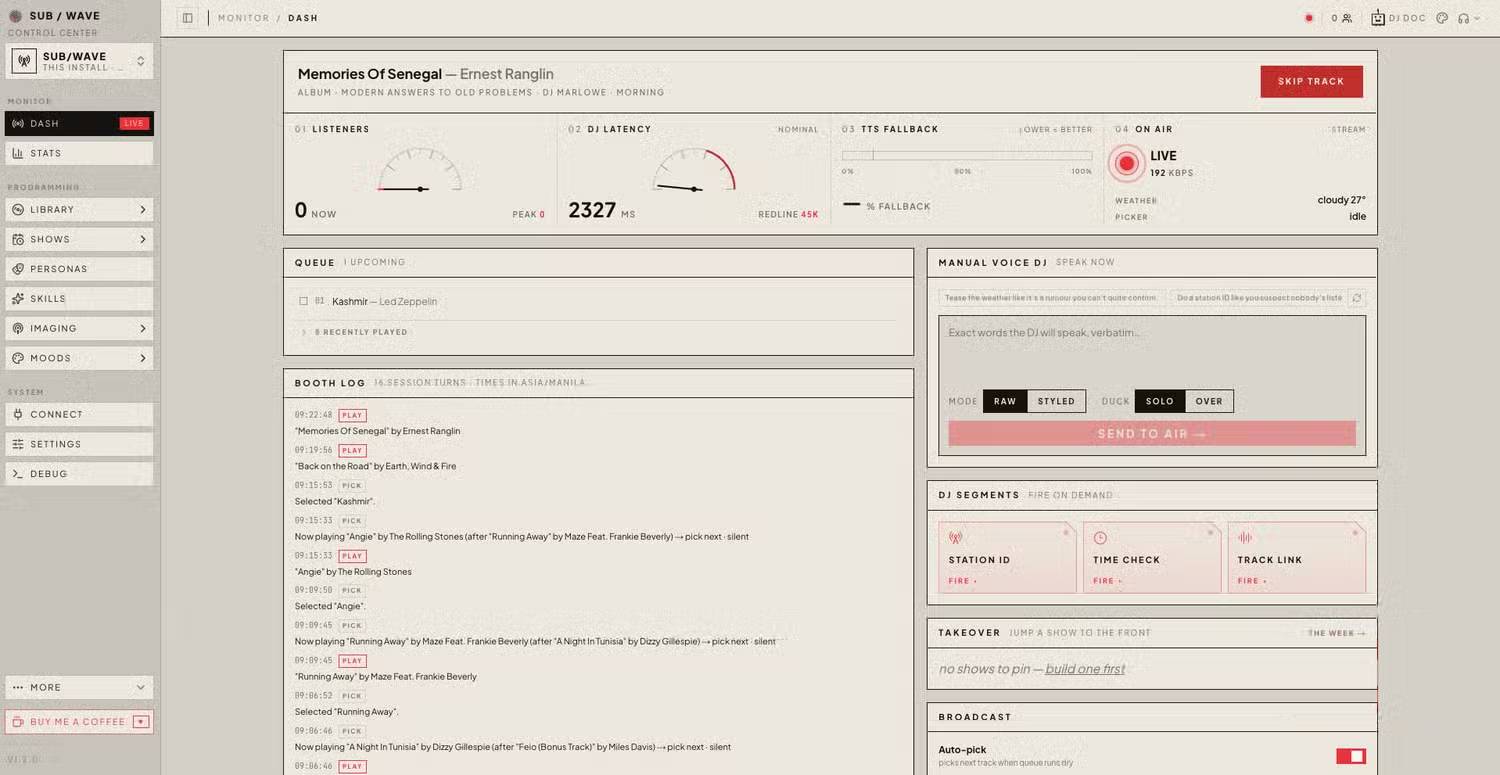
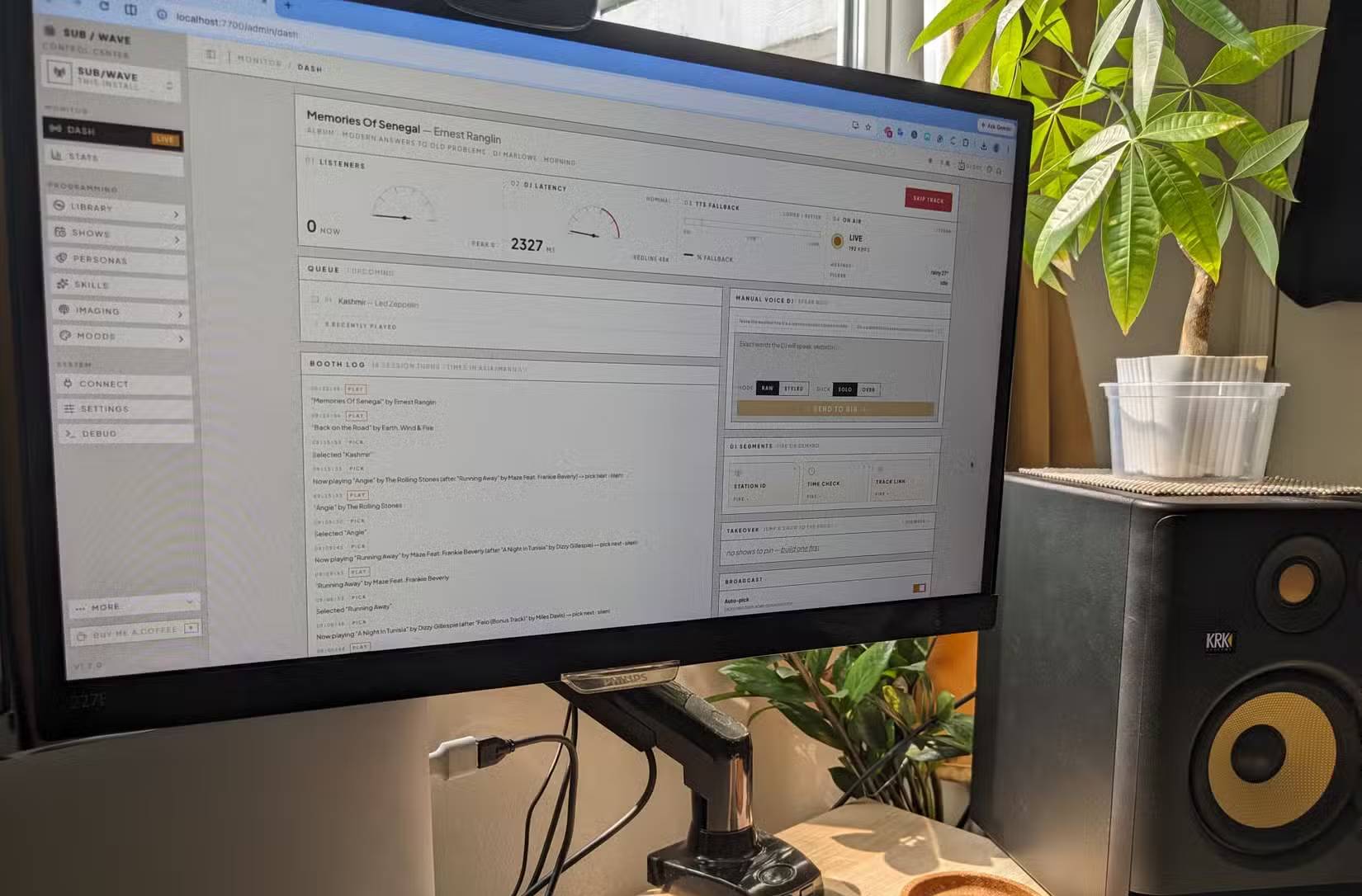
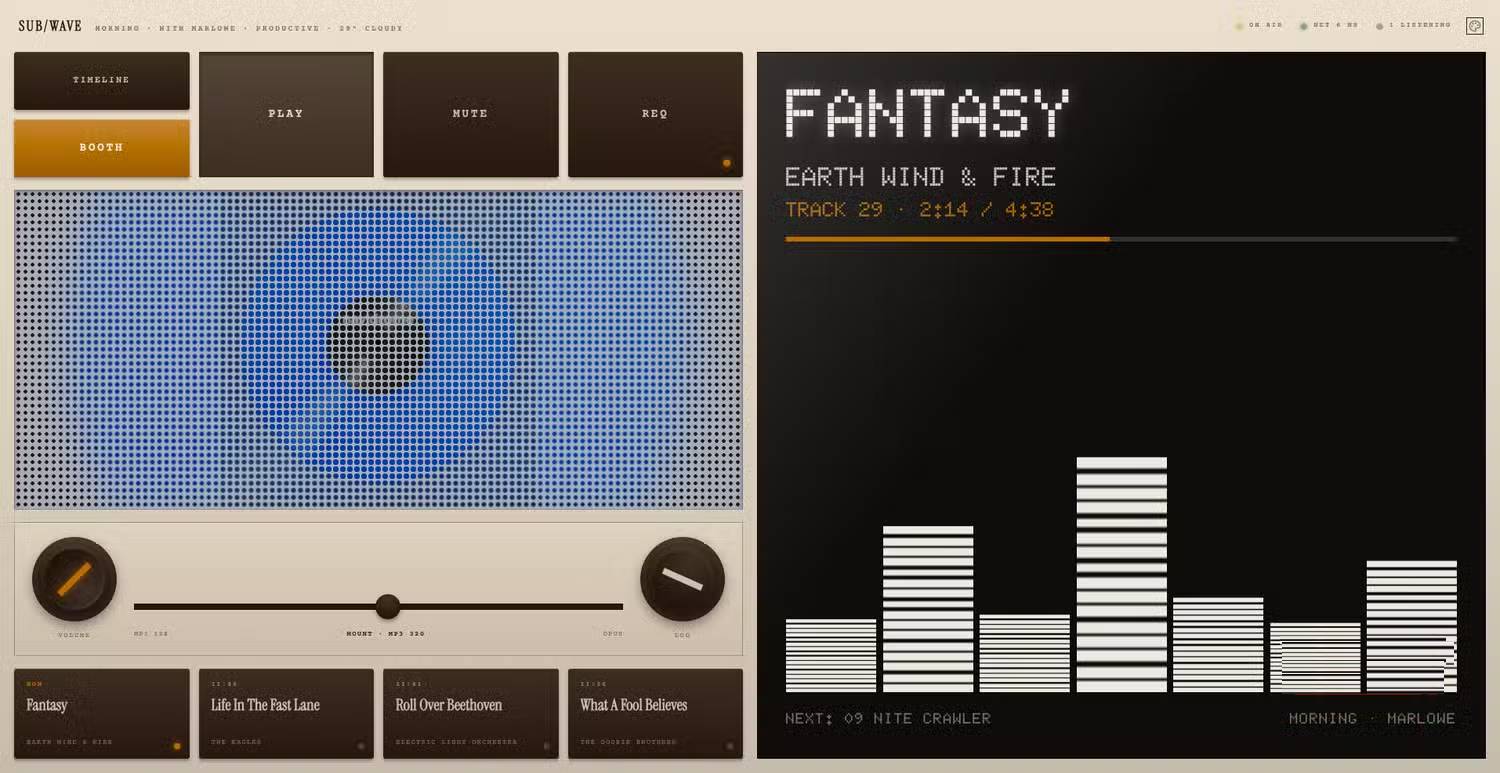
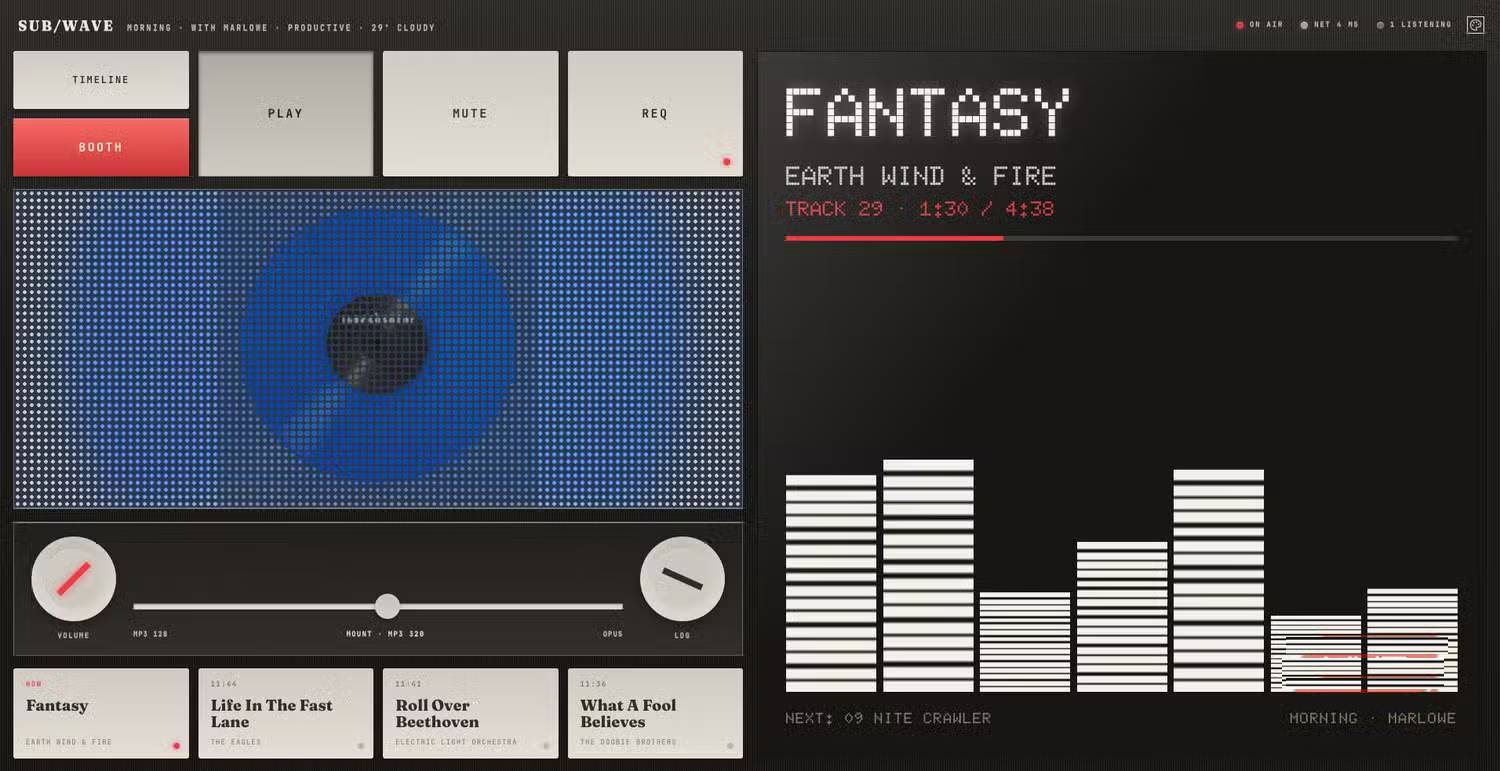
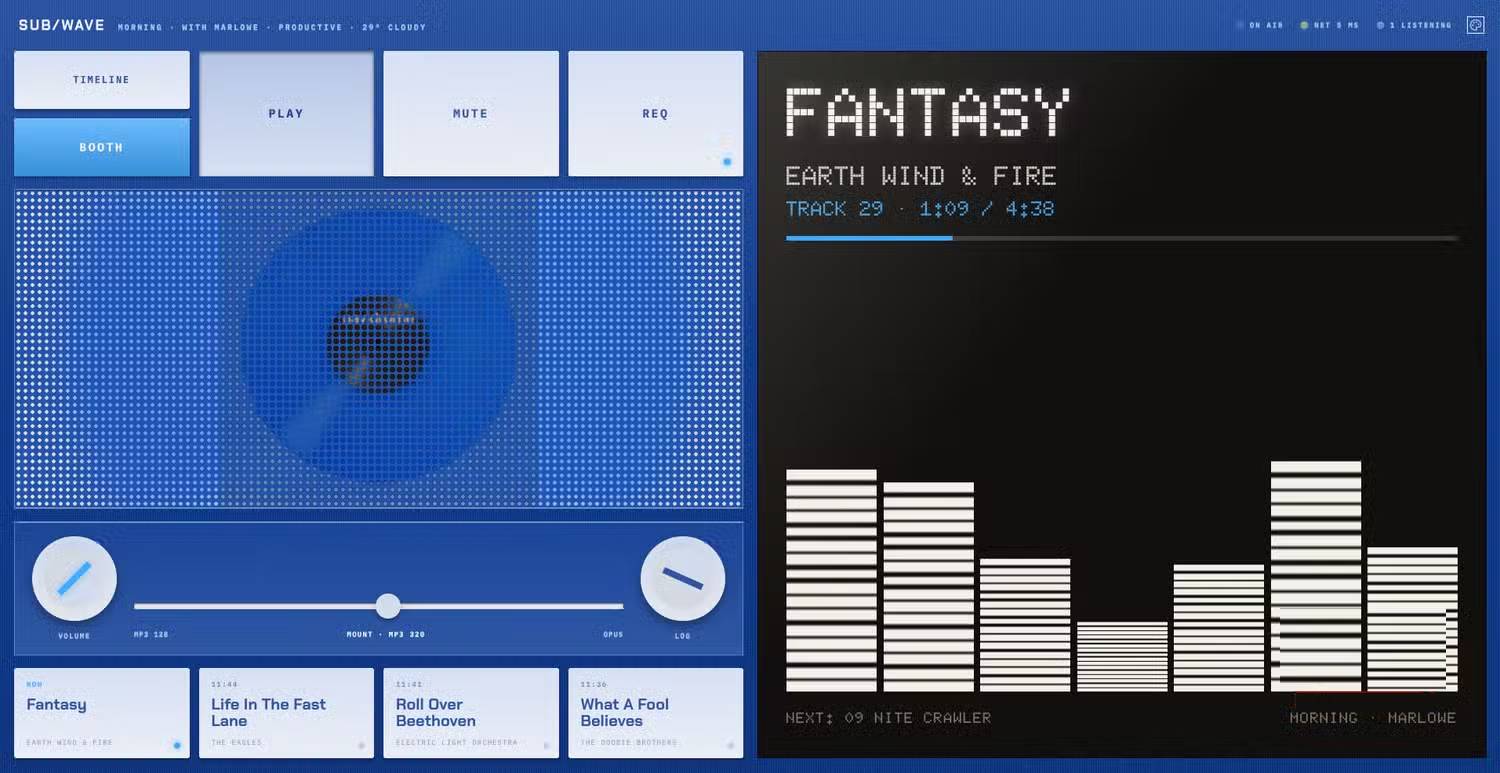
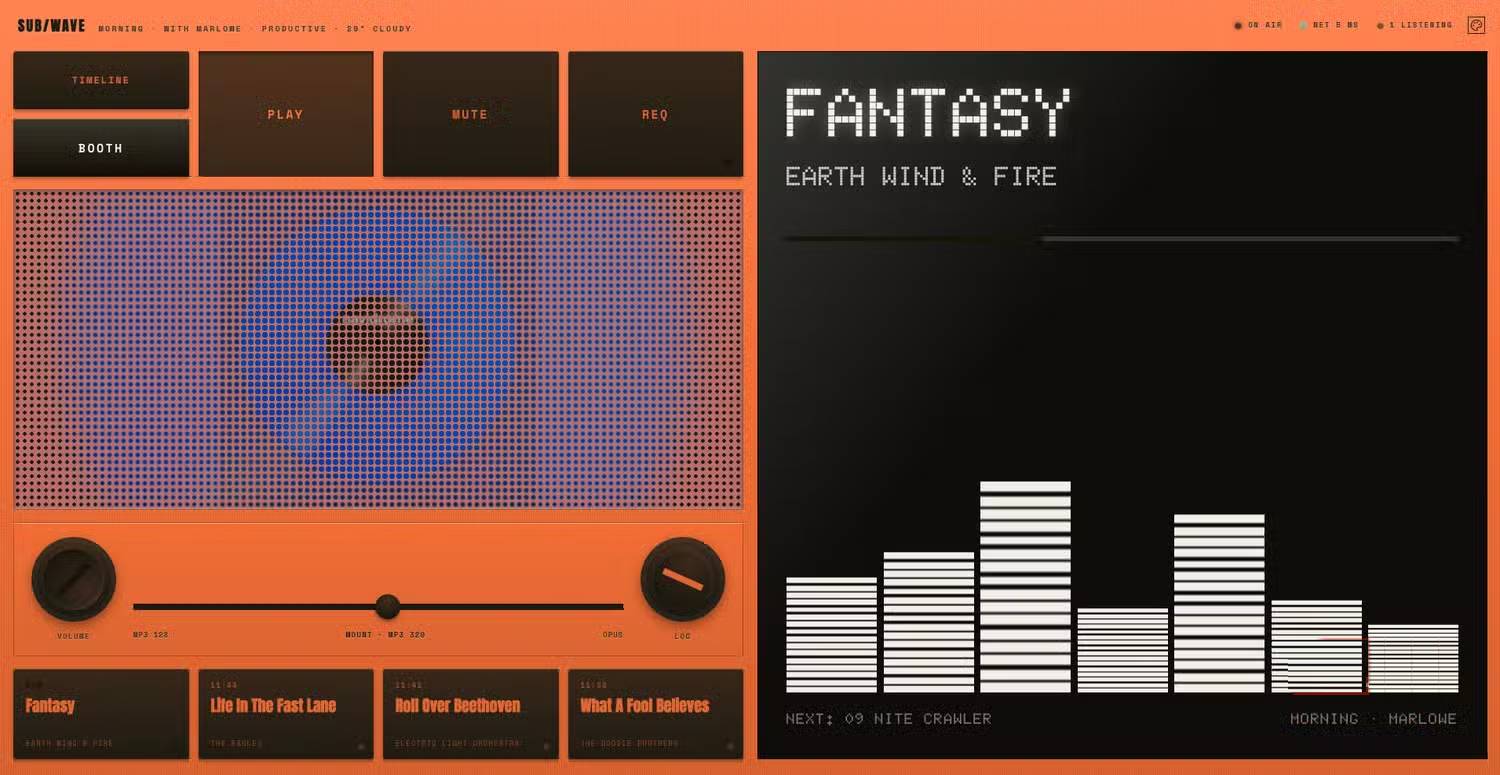
SUB/WAVE AI radio station dashboard
It sounds exhausting, but once you start building, the process becomes clearer. What's interesting here is the satisfaction you feel hearing your own music spinning from an AI DJ you built yourself. Everything runs locally, so you're no longer tethered to streaming services. The setup also broadcasts an actual internet radio stream, meaning you can listen through your browser or any compatible player on your home network.
Many people love having a personal radio station that only plays what they want to hear. They leave it running for hours on end, and those smooth track transitions make listening genuinely pleasant. Instead of queueing up favorite songs, you rediscover forgotten tracks and encounter ones you didn't even remember owning. It's like getting reacquainted with your own music collection.
The AI operates quietly in the background, maintaining steady momentum as different genres blend seamlessly—always feeling right, never jarring. The real concern here is that playlists generate continuously, so you never have to stop and think about what comes next, which keeps you more engaged. The whole experience echoes old FM radio, not today's on-demand streaming services.
But Setup Isn't Trivial
Not a Beginner-Friendly Project, But the Results Justify the Effort
Wiring multiple Docker containers together demands patience. Troubleshooting involves checking logs, testing API endpoints, verifying network connections, and eventually discovering your external drive disconnected. It's a hassle.
Still, stick with it. Once everything clicks into place, the system proves remarkably stable. The controller automatically generates playlists, broadcasts continuously, and your AI-powered radio station keeps running uninterrupted.
Without Docker experience, Linux command knowledge, or self-hosting background, this kind of debugging gets uncomfortable fast. However, after initial configuration, everyday operation is genuinely simple and worth the effort.
Is SUB/WAVE Better Than Spotify's AI DJ?
Let's be honest: for most people, Spotify's AI DJ is the easier, more convenient choice. It works immediately, demands zero technical knowledge, and surfaces new music with minimal fuss. SUB/WAVE demands more from you. It's not a ready-made solution—you need your own music library, a server, Docker, and enough patience to troubleshoot occasional configuration hiccups. This is a project built for music enthusiasts, not casual listeners.
But for people who've spent years curating their music collection? The payoff is genuinely rewarding. Having an AI-powered radio station built entirely around music you love is an achievement that, once configured, runs on its own without any further intervention or effort.
Description: SUB/WAVE lets you turn your music collection into an AI DJ radio station running entirely on your own hardware. Here's what you need to know.